How to Merge Multiple Rhino Models Online

Modelo enables users to merge multiple Rhino models online for free. Come and see how you can do that in just two easy steps.

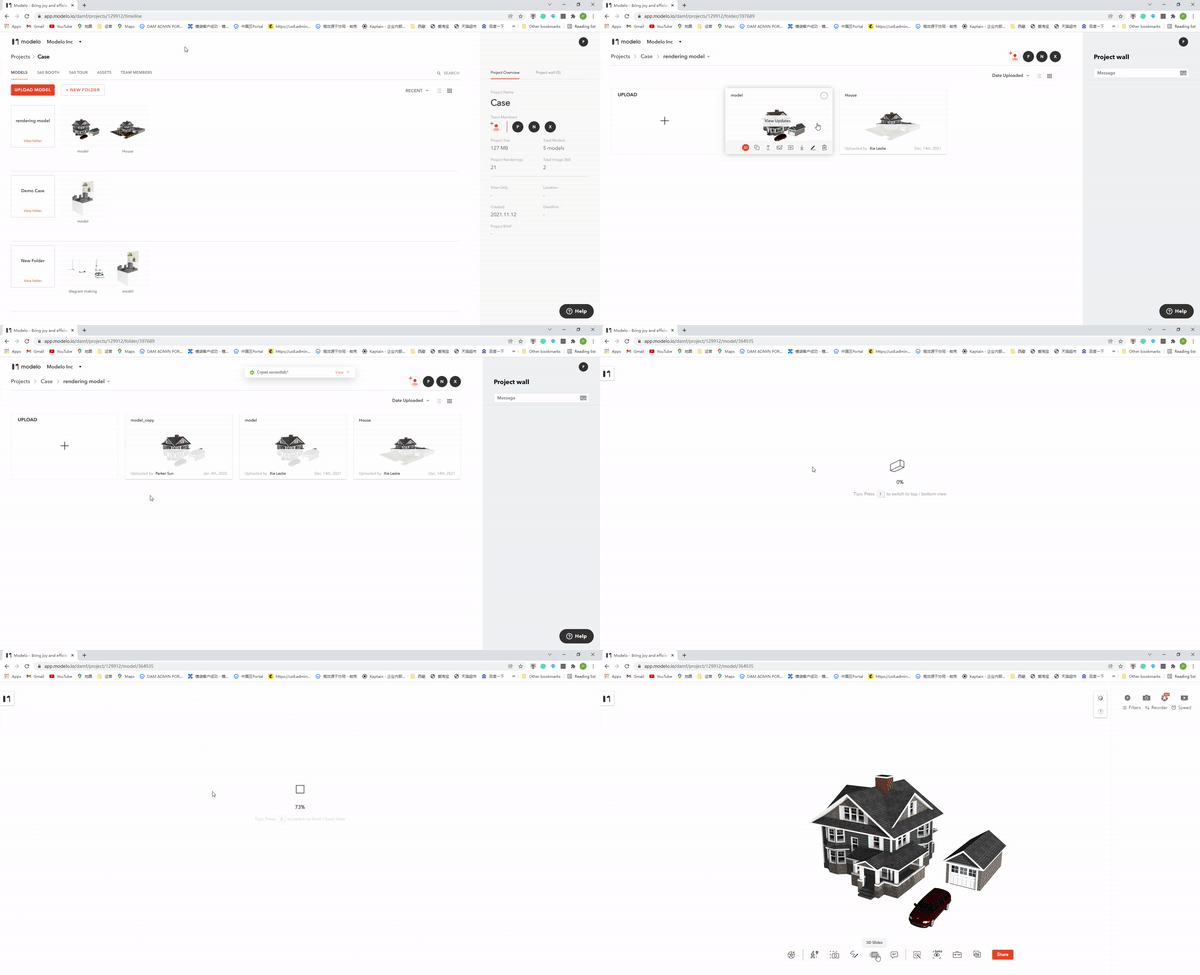
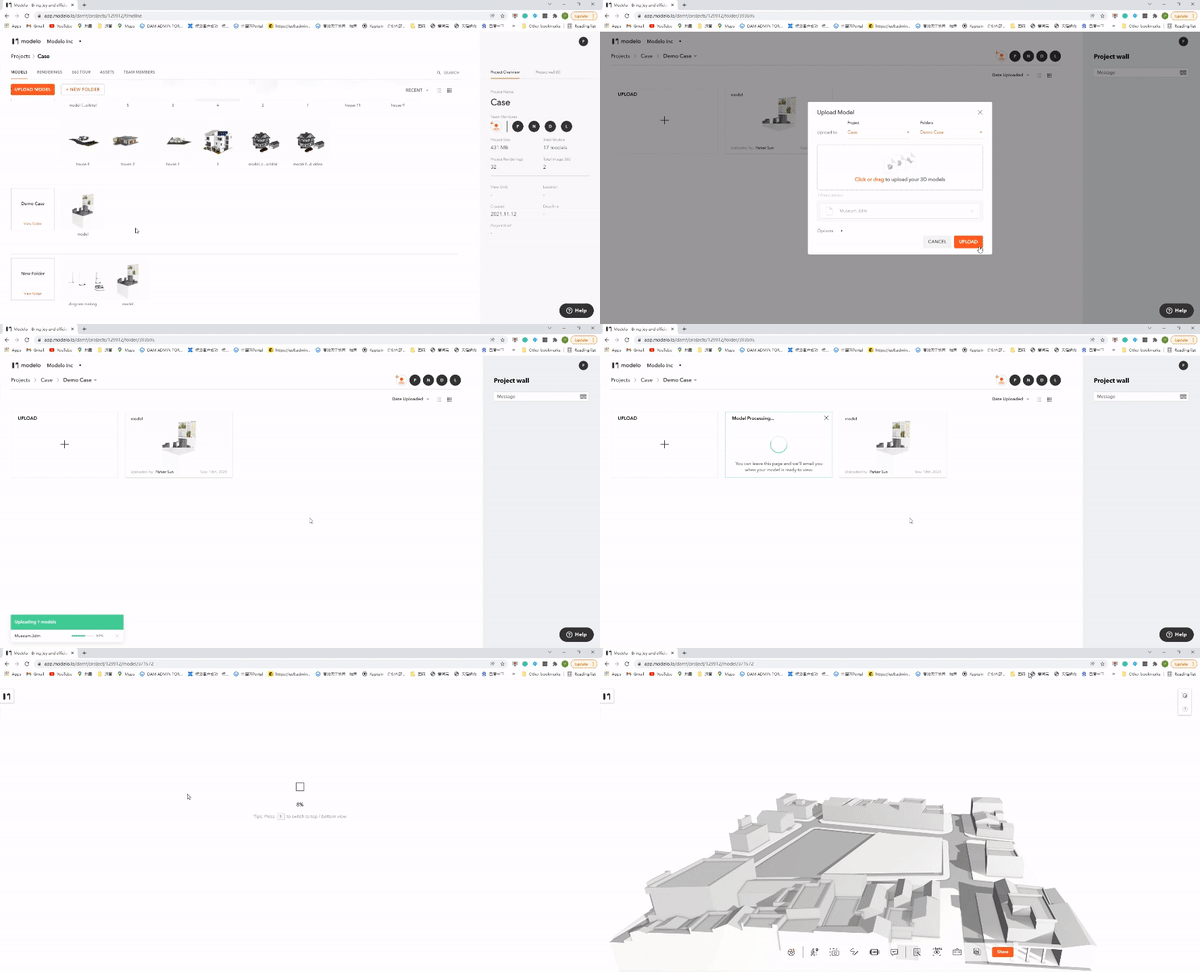
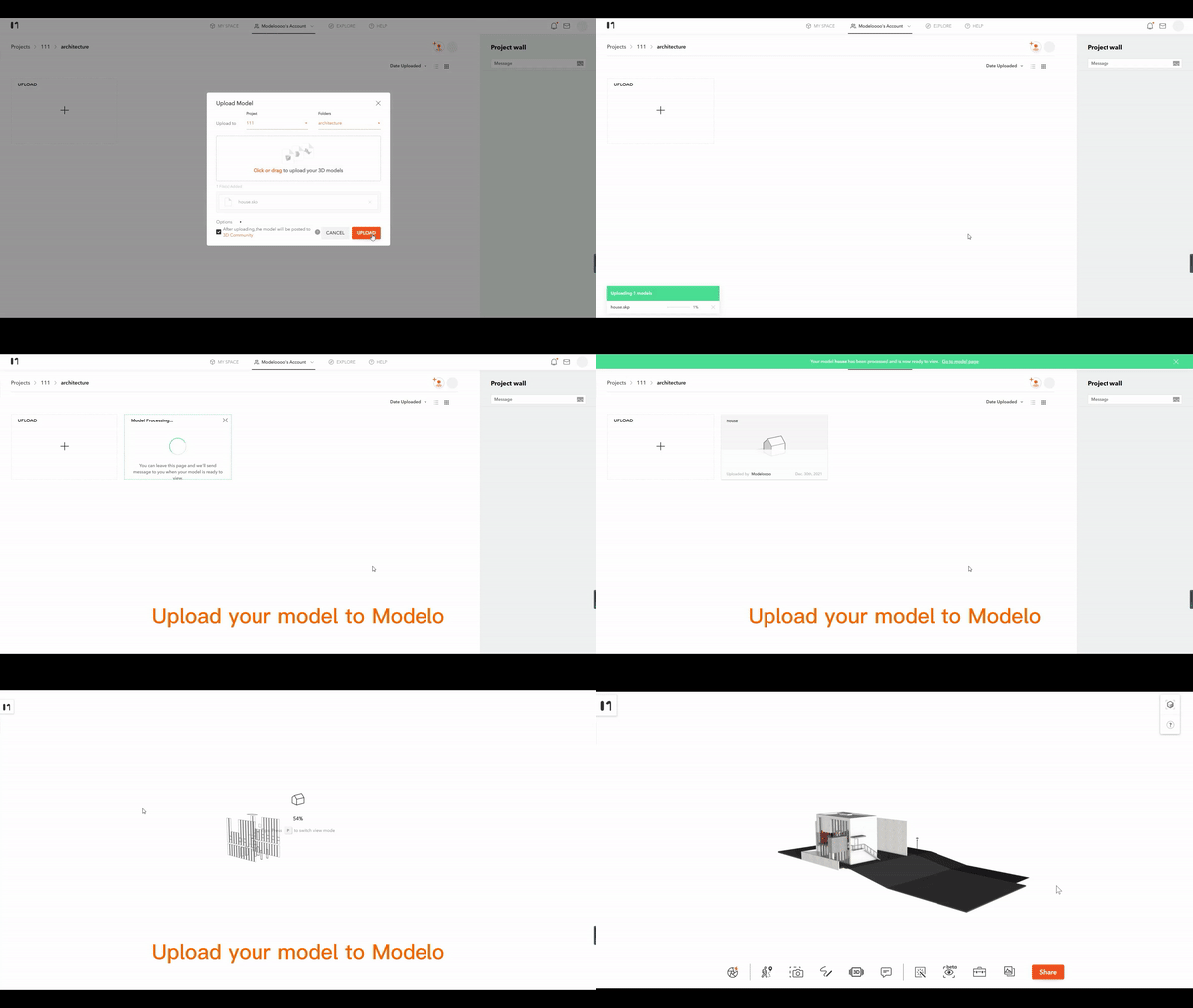
First, you need to upload your Rhino models to Modelo. Just drag to upload your Rhino models to Modelo. You can upload several models online at one time.

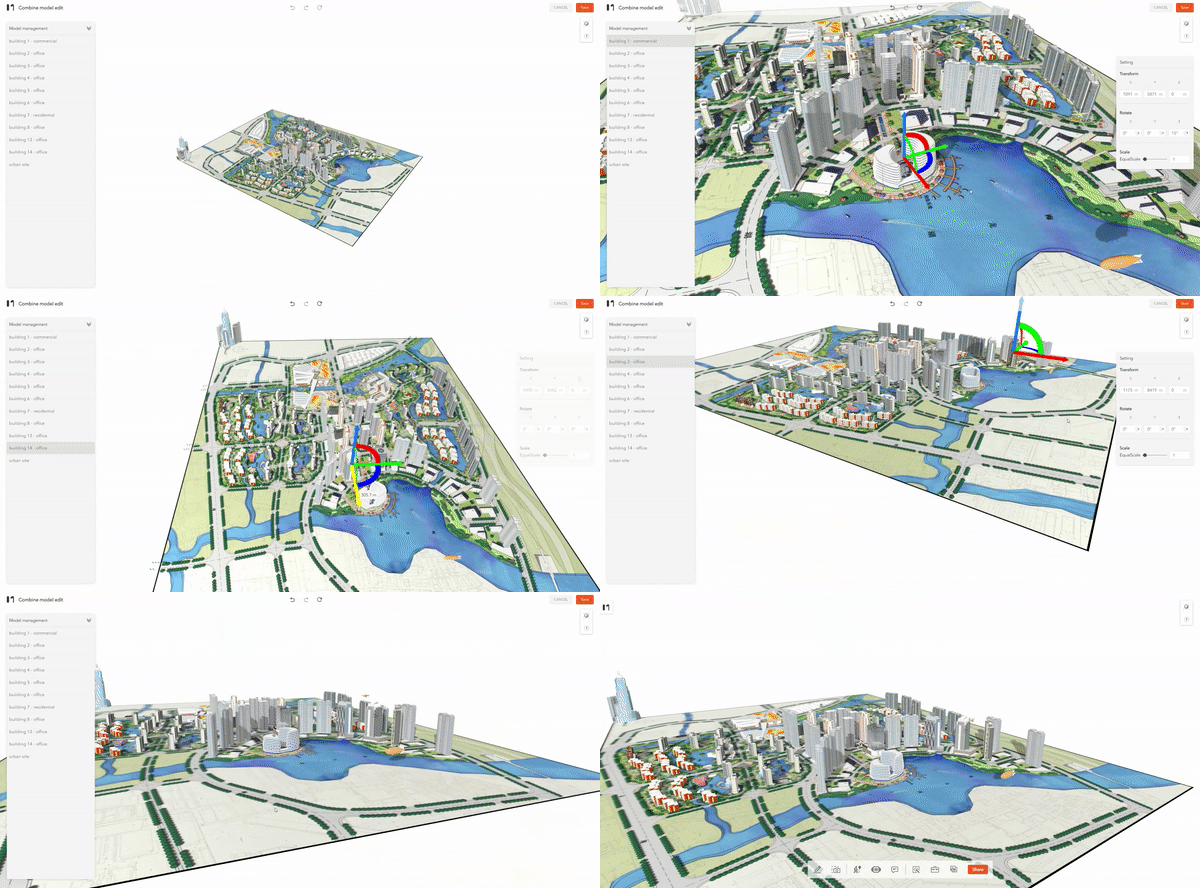
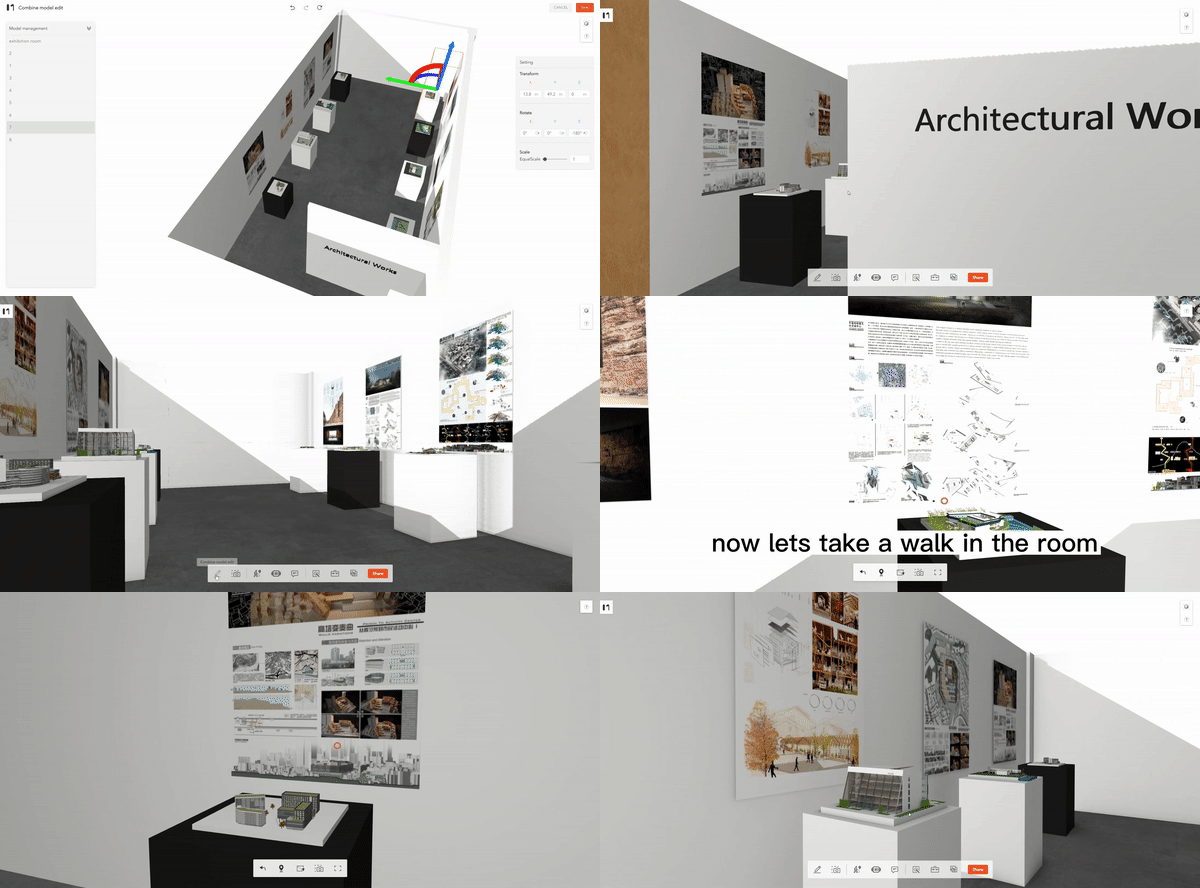
When you click the ”Combine Model“ option on the project page, you can select the models to be merged and open them on the same page. You can see the list of models on the left side of your window.

You can select the model through the list on the left and adjust their positions through the axes. Don’t forget to click the save button in the upper right corner after editing.

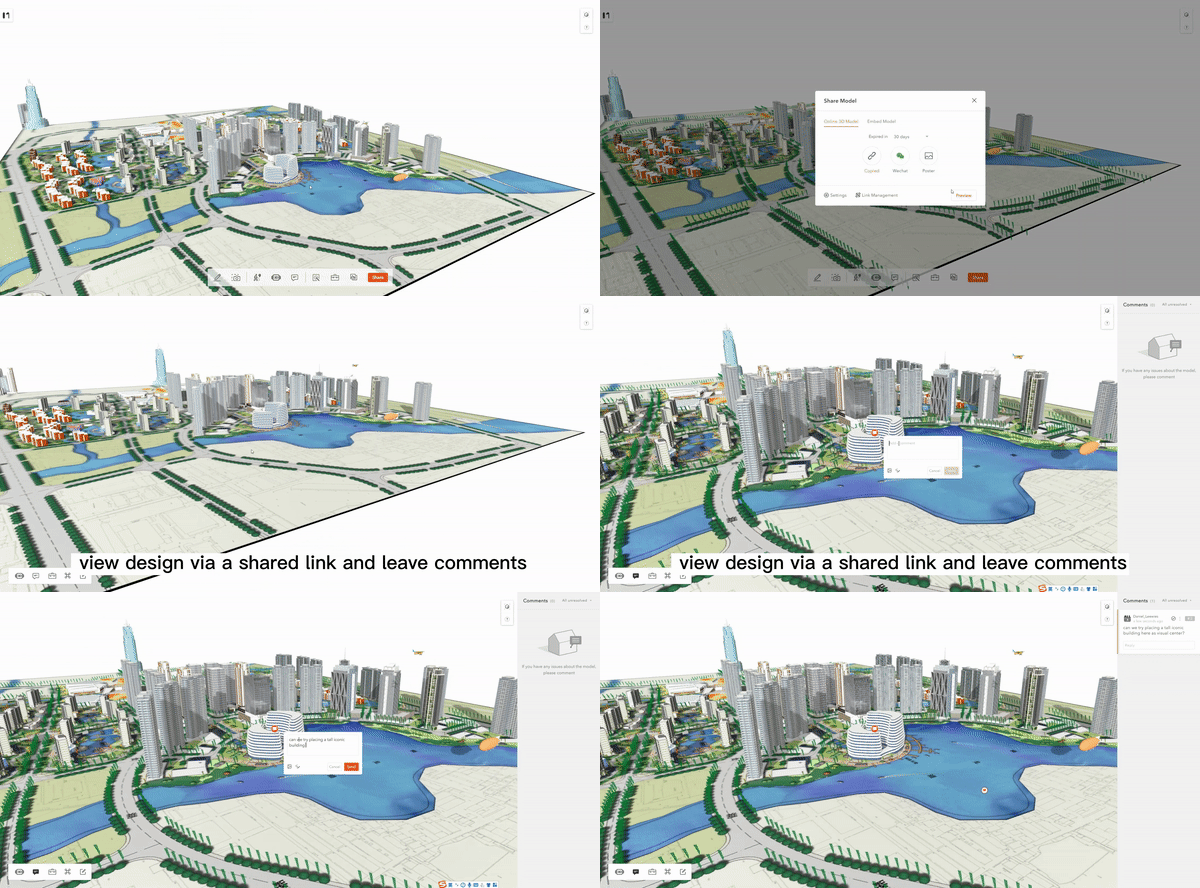
After the merge is completed, you can share the model with one click and complete online communication with others through the Model comment, which improves collaboration efficiency.

When you click the ”Combine Model“ option on the project page, you can select the models to be merged and open them on the same page. You can see the list of models on the left side of your window.

You can select the model through the list on the left and adjust their positions through the axes. Don’t forget to click the save button in the upper right corner after editing.

After the merge is completed, you can share the model with one click and complete online communication with others through the Model comment, which improves collaboration efficiency.

Modelo enables users to merge multiple Sketchup models online for free. Come and see how you can do that in just two easy steps.

First, you need to upload your Sketchup models to Modelo. Just drag to upload your Sketchup models to Modelo. You can upload several models online at one time.

When you click the ”Combine Model“ option on the project page, you can select the models to be merged and open them on the same page. You can see the list of models on the left side of your window.

You can select the model through the list on the left and adjust their positions through the axes. Don’t forget to click the save button in the upper right corner after editing.

After the merge is completed, you can share the model with one click and complete online communication with others through the Model comment, which improves collaboration efficiency.

When you click the ”Combine Model“ option on the project page, you can select the models to be merged and open them on the same page. You can see the list of models on the left side of your window.

You can select the model through the list on the left and adjust their positions through the axes. Don’t forget to click the save button in the upper right corner after editing.

After the merge is completed, you can share the model with one click and complete online communication with others through the Model comment, which improves collaboration efficiency.

How to Merge Multiple Sketchup Models Online

Modelo enables users to merge multiple Sketchup models online for free. Come and see how you can do that in just two easy steps.

First, you need to upload your Sketchup models to Modelo. Just drag to upload your Sketchup models to Modelo. You can upload several models online at one time.

When you click the ”Combine Model“ option on the project page, you can select the models to be merged and open them on the same page. You can see the list of models on the left side of your window.

You can select the model through the list on the left and adjust their positions through the axes. Don’t forget to click the save button in the upper right corner after editing.

After the merge is completed, you can share the model with one click and complete online communication with others through the Model comment, which improves collaboration efficiency.

When you click the ”Combine Model“ option on the project page, you can select the models to be merged and open them on the same page. You can see the list of models on the left side of your window.

You can select the model through the list on the left and adjust their positions through the axes. Don’t forget to click the save button in the upper right corner after editing.

After the merge is completed, you can share the model with one click and complete online communication with others through the Model comment, which improves collaboration efficiency.

Modelo 2022 Q1 Updates!

We’re excited to announce that Modelo 2022.1 is now available, with a host of new features that make it even easier to present, collaborate, and share 3D models or panorama images online. Let’s take a look at what the updates are.

1. Generate 360 Tour with Annotations

The Modelo’s generating 360 tours from models has been popular since its release. Now, this feature has taken a big step forward. With one click, you can convert your model to 360 panorama tours via 3D slides and all the attachments will be the annotations in the tours.

2. Online GLTF Converter with Modelo

Modelo is compatible with GLTF files now. You can transfer all kinds of 3D models to GLTF files with one click and open GLTF in Modelo online.

3. Move & Copy Models in Modelo

You can move & copy models in Modelo now. Via clicking the copy option in the model tab, you can copy the model with all works in seconds.

4. Watch KooLab Time-lapse Photography online

Users can watch the KooLab time-lapse photography online now. Modelo adds a “Time-lapse photography” tab on the asset page. You can watch, download and share the time-lapse photography in MP4 format.

5. New 3D slide mode

The new 3D slide mode can automatically take screenshots and save the thumbnails in the tab on the right, which enables users to quickly lock to the desired tab and facilitate management. When you want to adjust the view of the slide, you just need to move the model to the corresponding position and click “Update the view”. It can be updated at once and Modelo will automatically update the corresponding thumbnail.

6. Architecture Diagram

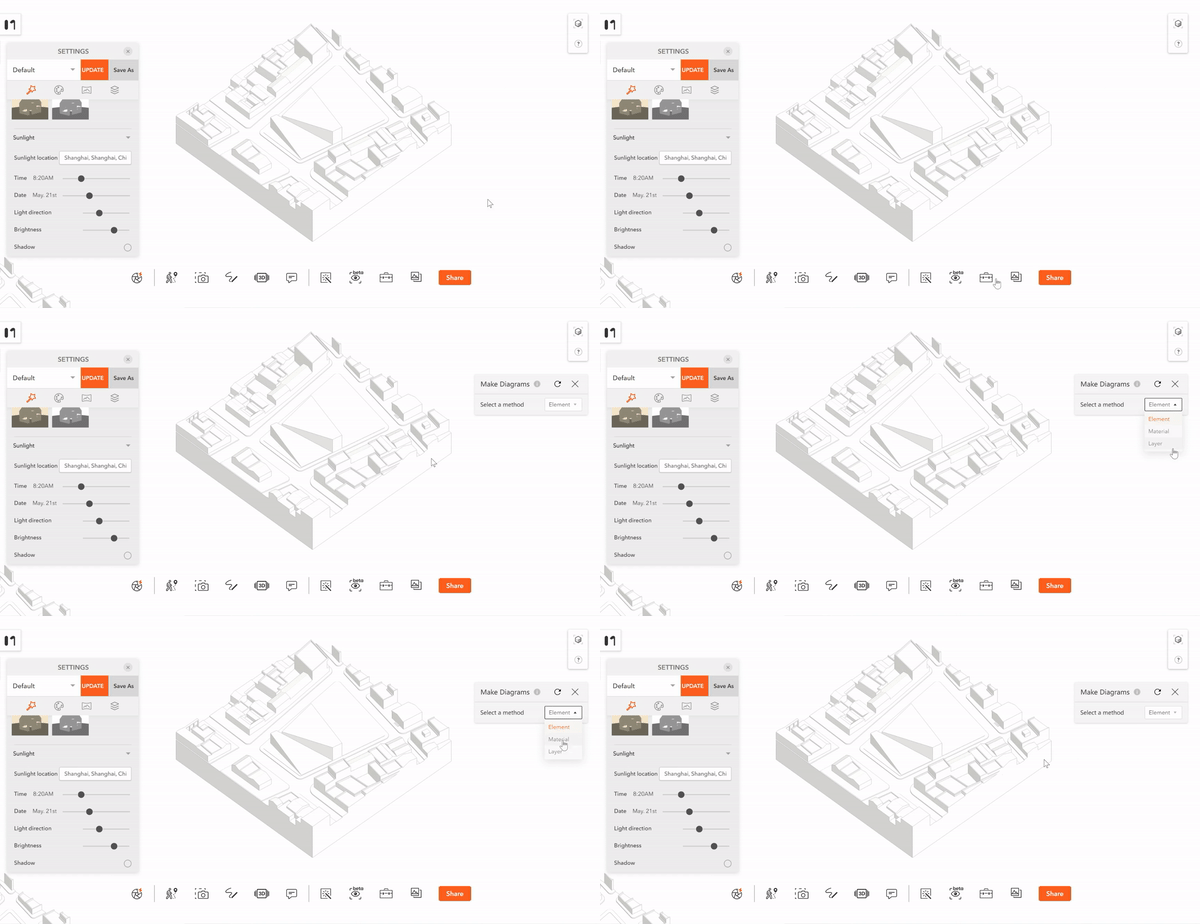
Modelo enables users to easily create architectural diagrams. With the new “Make Diagram” function in the Modelo tool, users can select model components by layer, material, and elements. Then you can change their strokes and color at your will and create beautiful architectural diagrams in seconds. Besides, you can use the 3D arrow to illustrate your design.

7. Combine Model

The ”Combine Model“ option enables users to merge multiple models and open them on the same page. You can select the model through the list on the left and adjust their positions through the axes. Don’t forget to click the save button in the upper right corner after editing.

If you’re an existing user, just log in to Modelo. We hope you enjoy this release!

How to host an online 3D virtual exhibition with Modelo?

Modelo released a lot of new features these days. Today, we use the online 3D exhibition as an example to show how to use Modelo’s new feature – Combine Model in your real life.

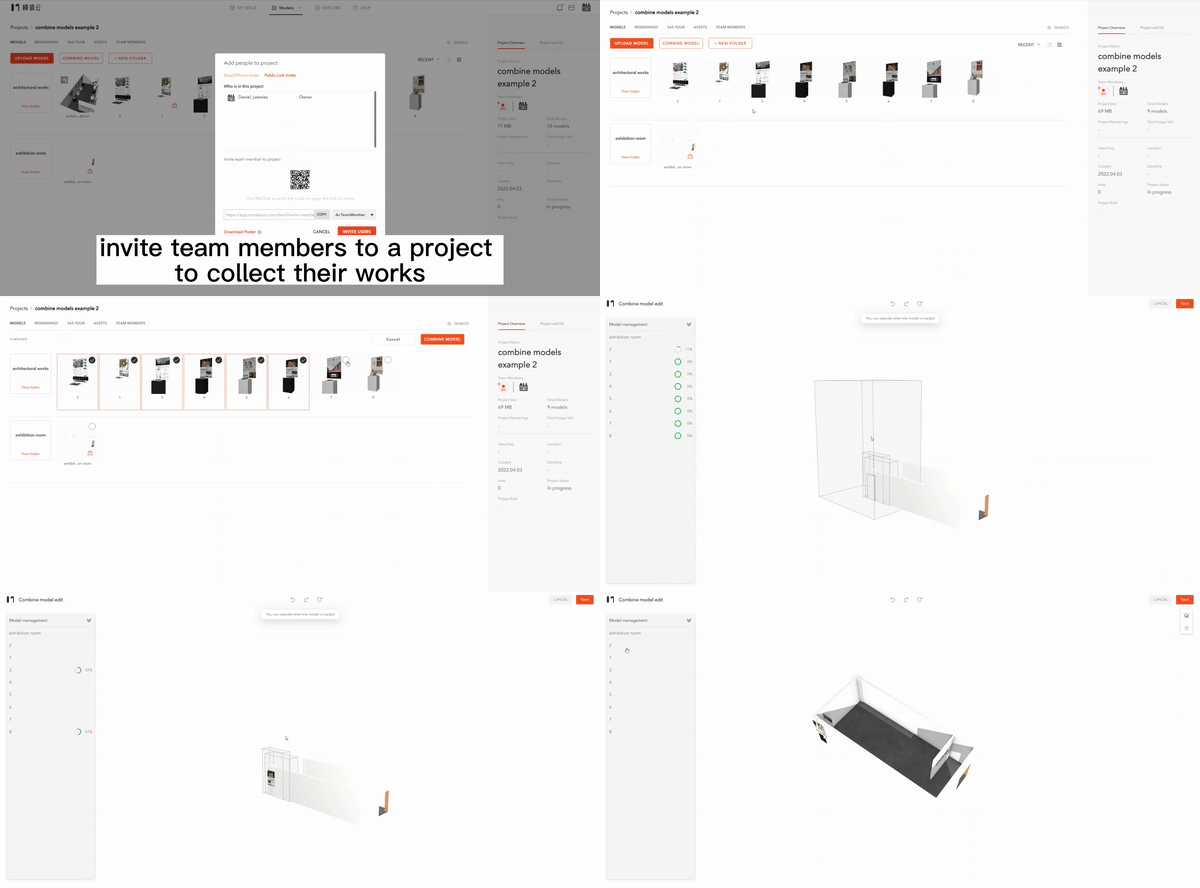
Step 1: Invite your teammates and upload your models
First, you need to invite team members to the same Modelo project and upload all models in the design exhibition. Then you can use Modelo’s “Combine Model” function to combine all the materials into one model.

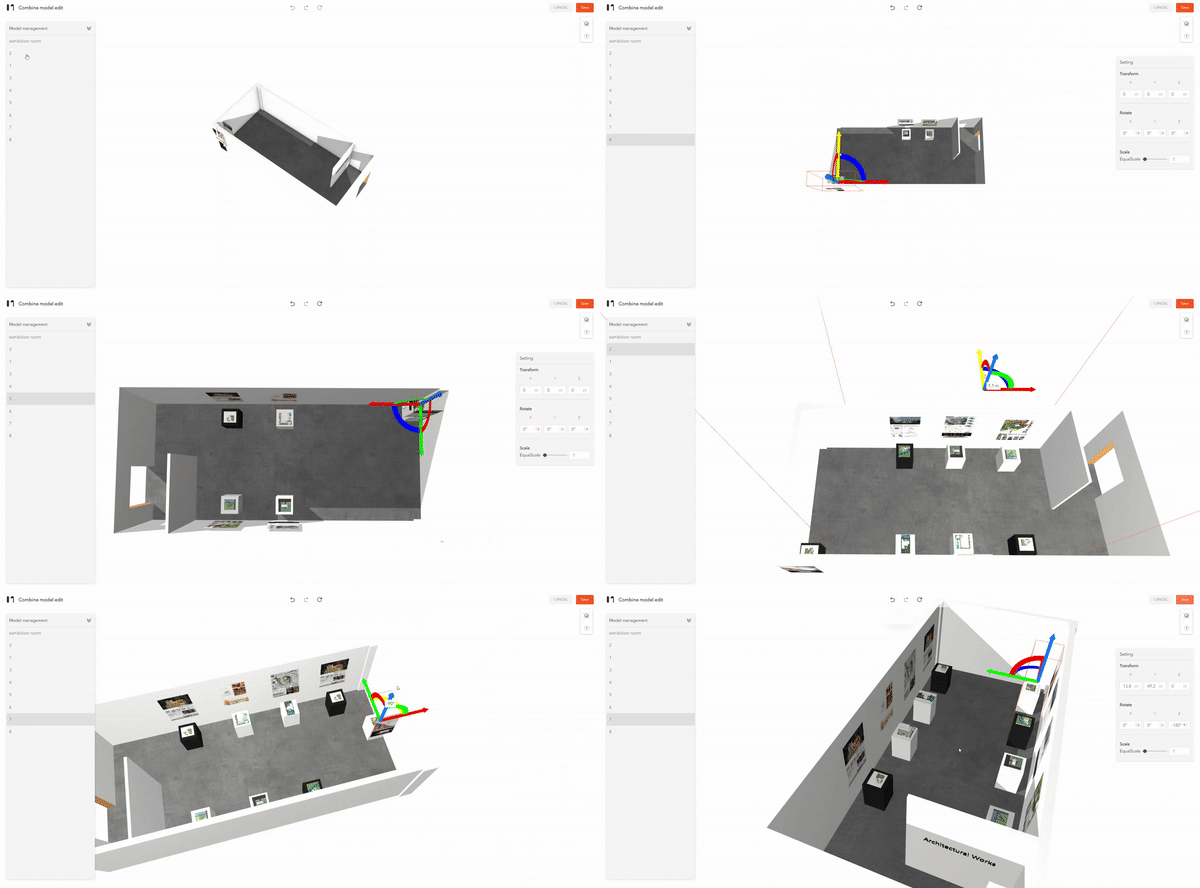
Step 2: Adjust models’ location
You can click the model on the left side and use the axis to adjust each model’s location. After finishing this step, the online design exhibition is almost done.

Step 3: Showcase the exhibition
If you want to show this online design exhibition, walking inside must be a good choice. Using the Modelo’s walk mode, you can lead users into the exhibition and record the process via the walkthrough function.

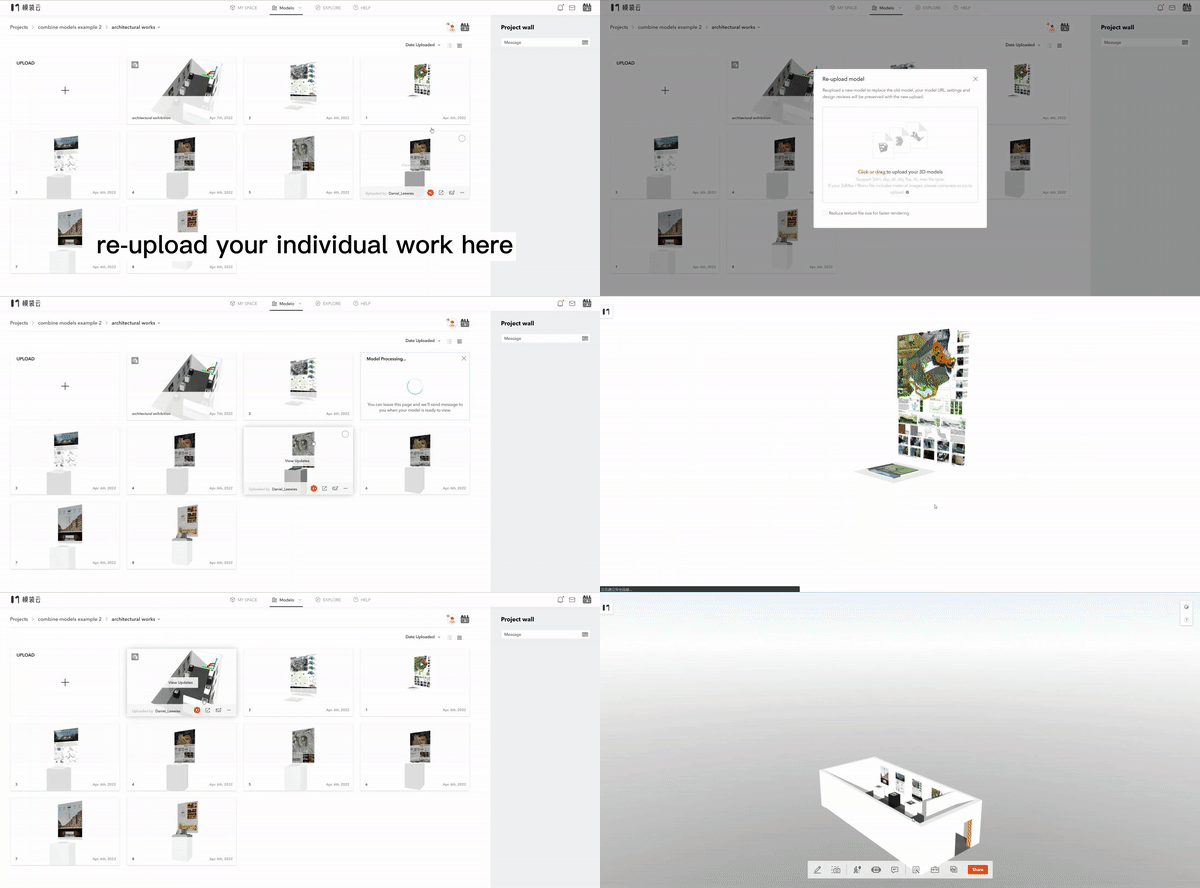
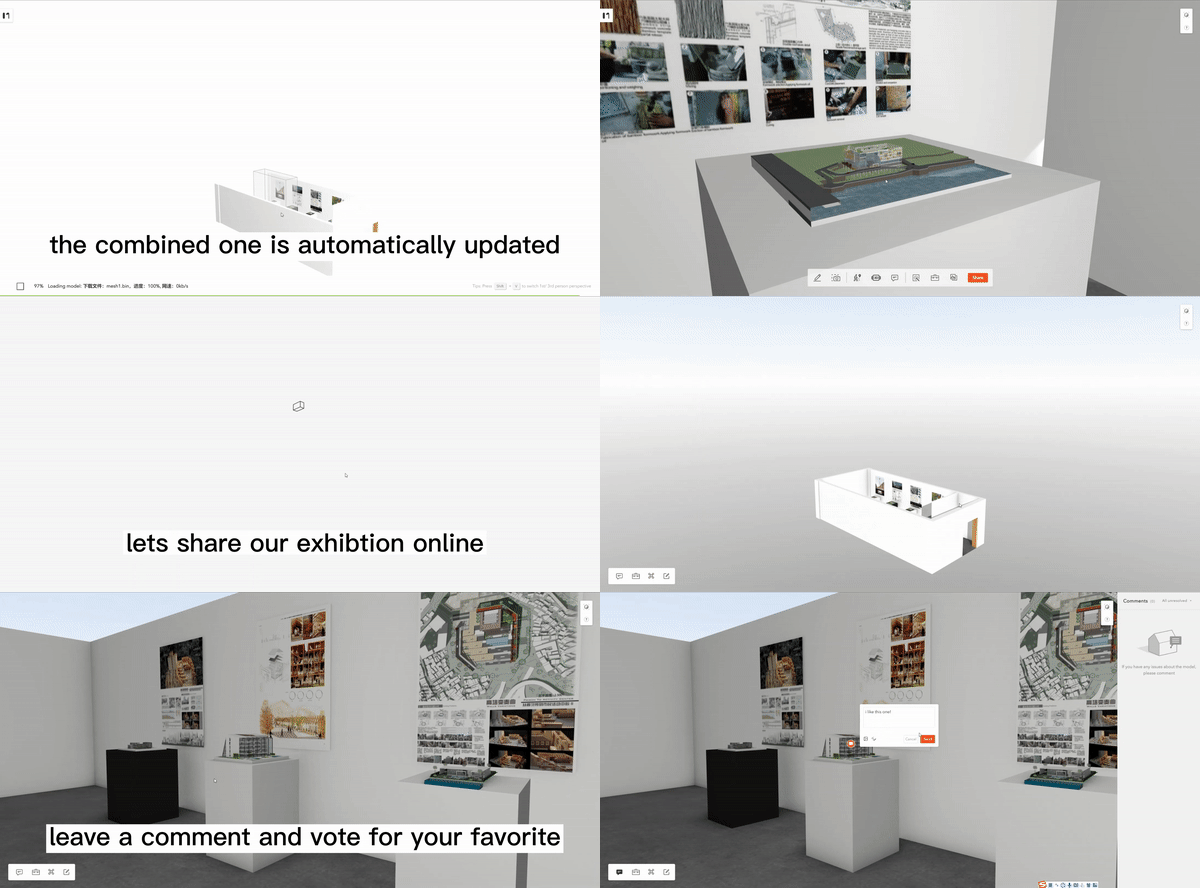
Tips: If one of your individual models needs to be updated, just click the reload option on the model card. The model in the exhibition will be updated immediately and you don’t need to adjust its location again.

Step 4: Share your exhibition and collaborate online.
Now, the online design exhibition is ready. You can share it with others and communicate in this model. People can leave a comment and vote for your favorite.

Isn’t that amazing? Upload your models and try it now!

How to draw an architecture diagram in three minutes with Modelo?

An architecture diagram is a graphical representation of a set of concepts, that is part of the architecture, including their principles, elements, and components. However, it usually takes hours or days to create a qualified architecture diagram. Do you know that Modelo enables users to draw an architecture diagram in three minutes? Let’s see how to do it.

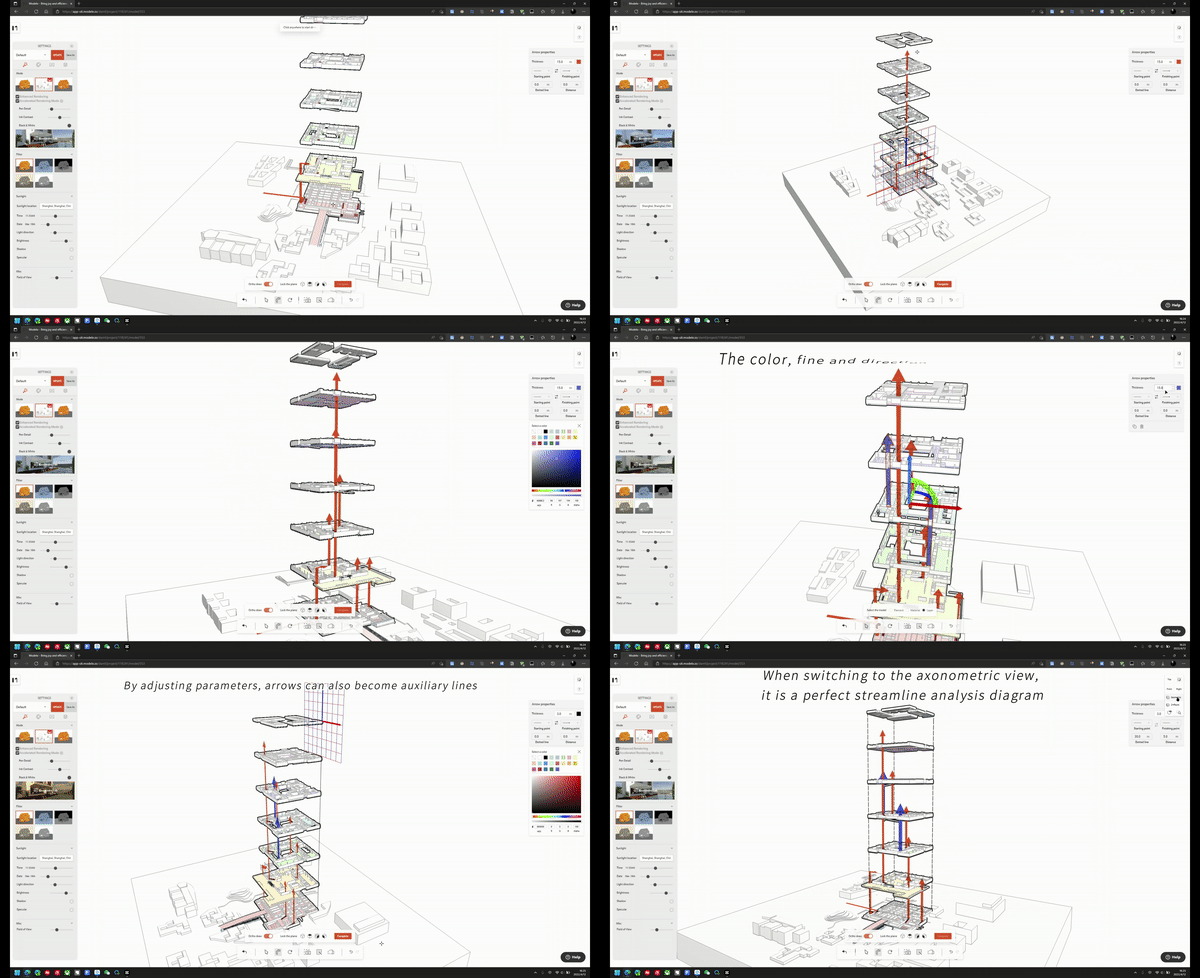
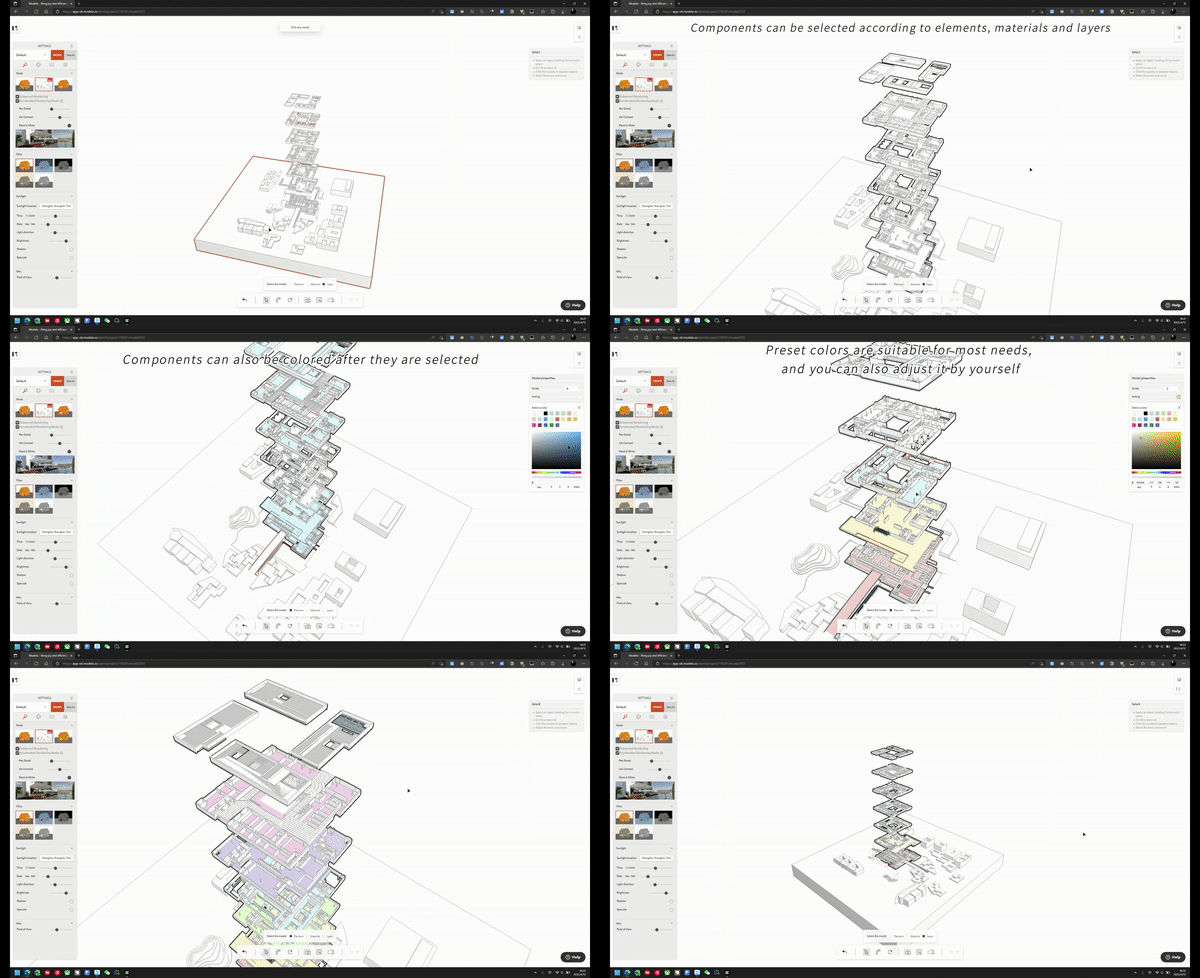
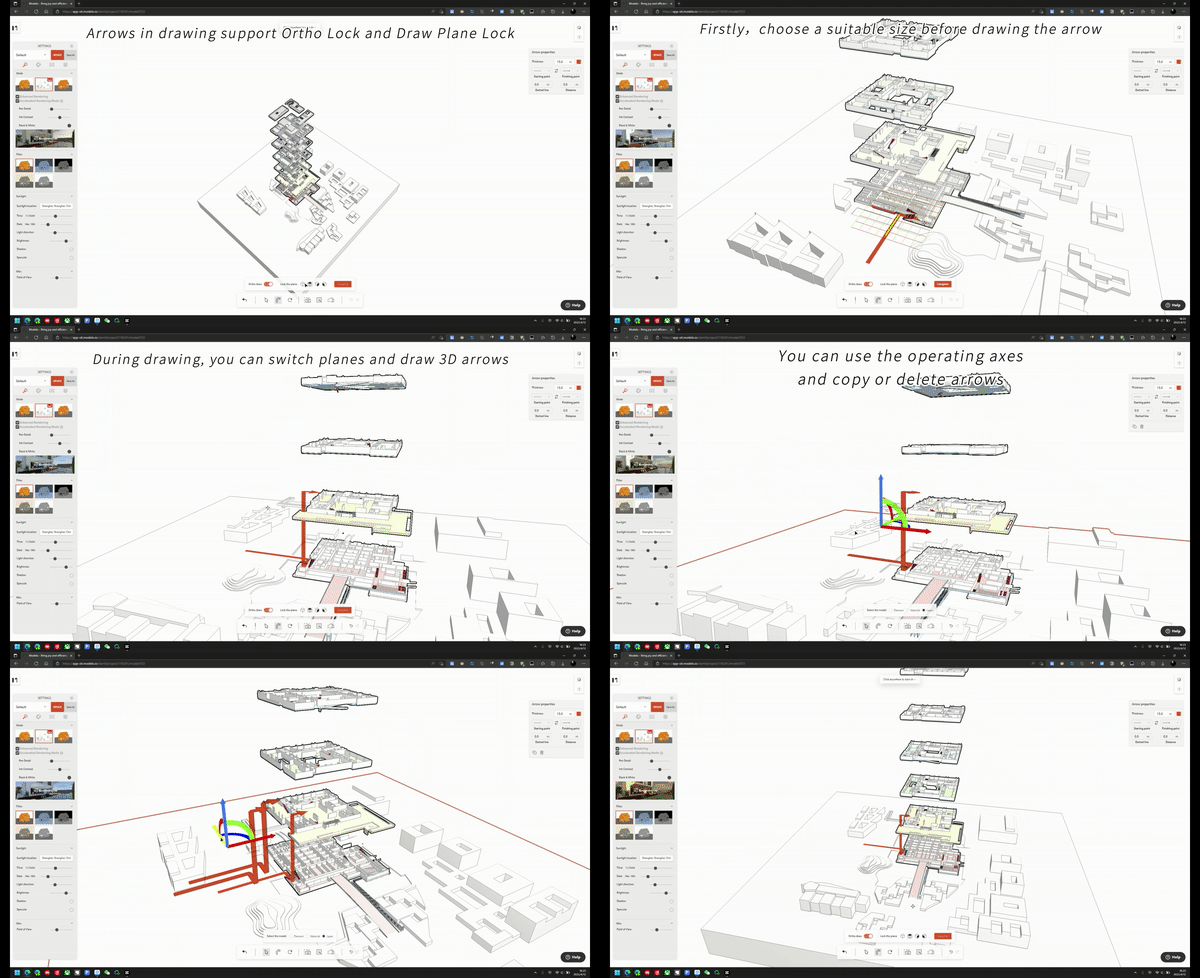
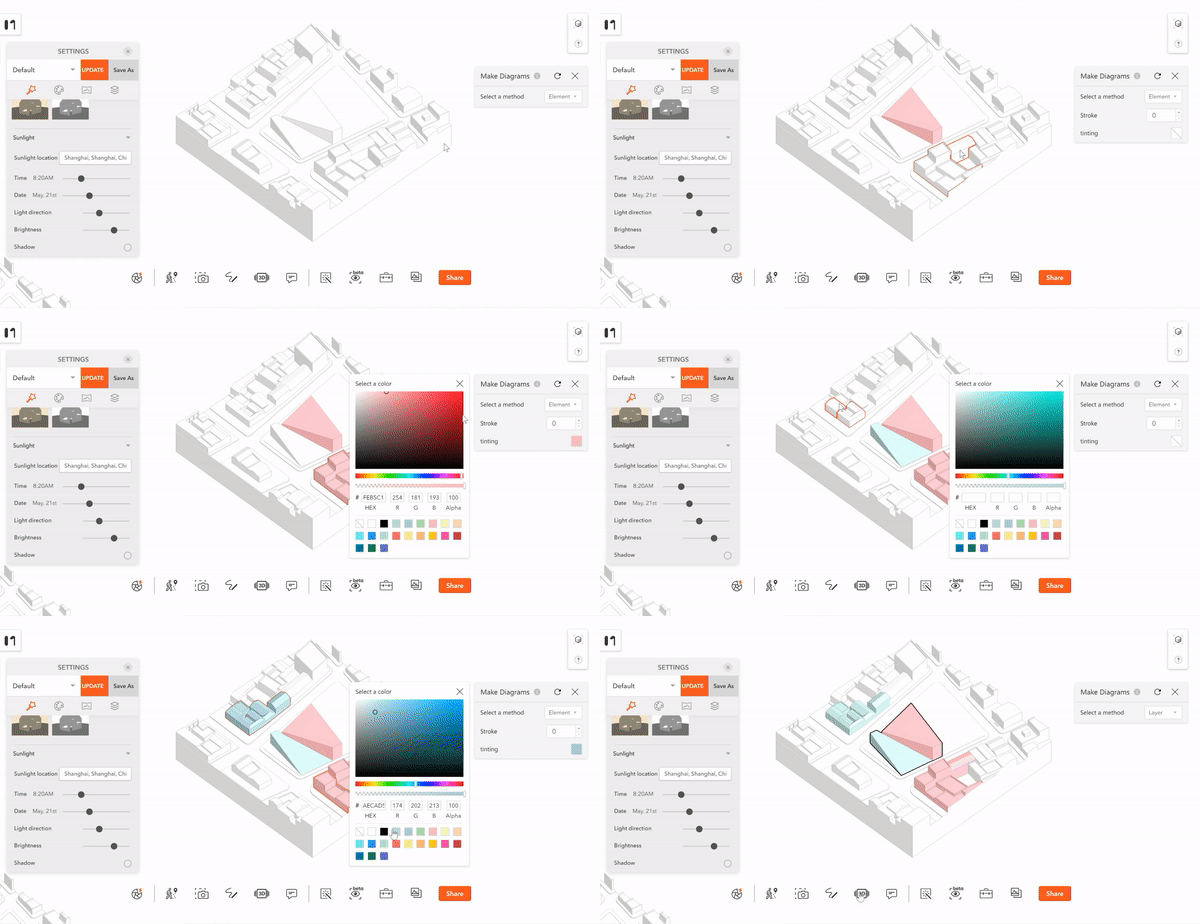
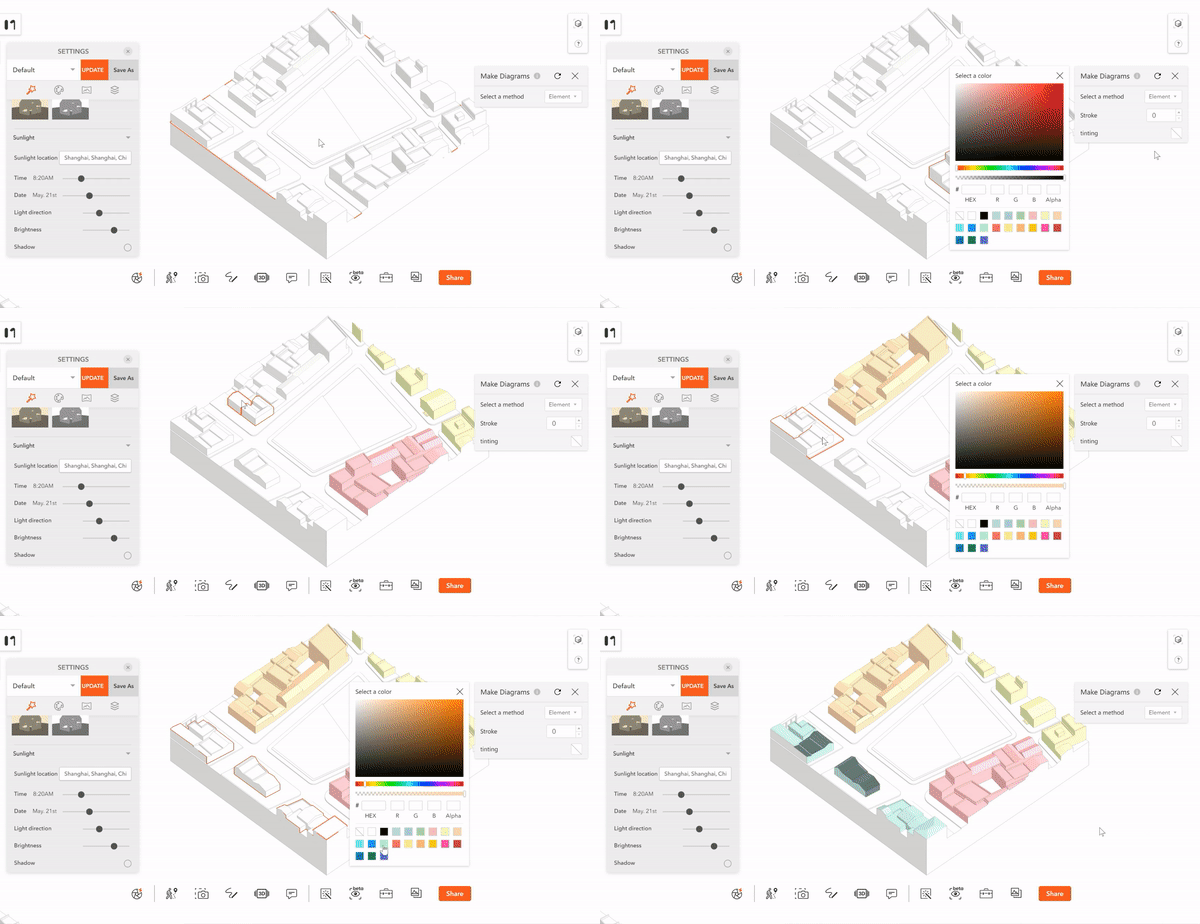
Let’s take the model in the picture as an example. If you want to create a beautiful analysis diagram, you need to distinguish levels with different colors first. You can select and color components by elements, layer or materials.

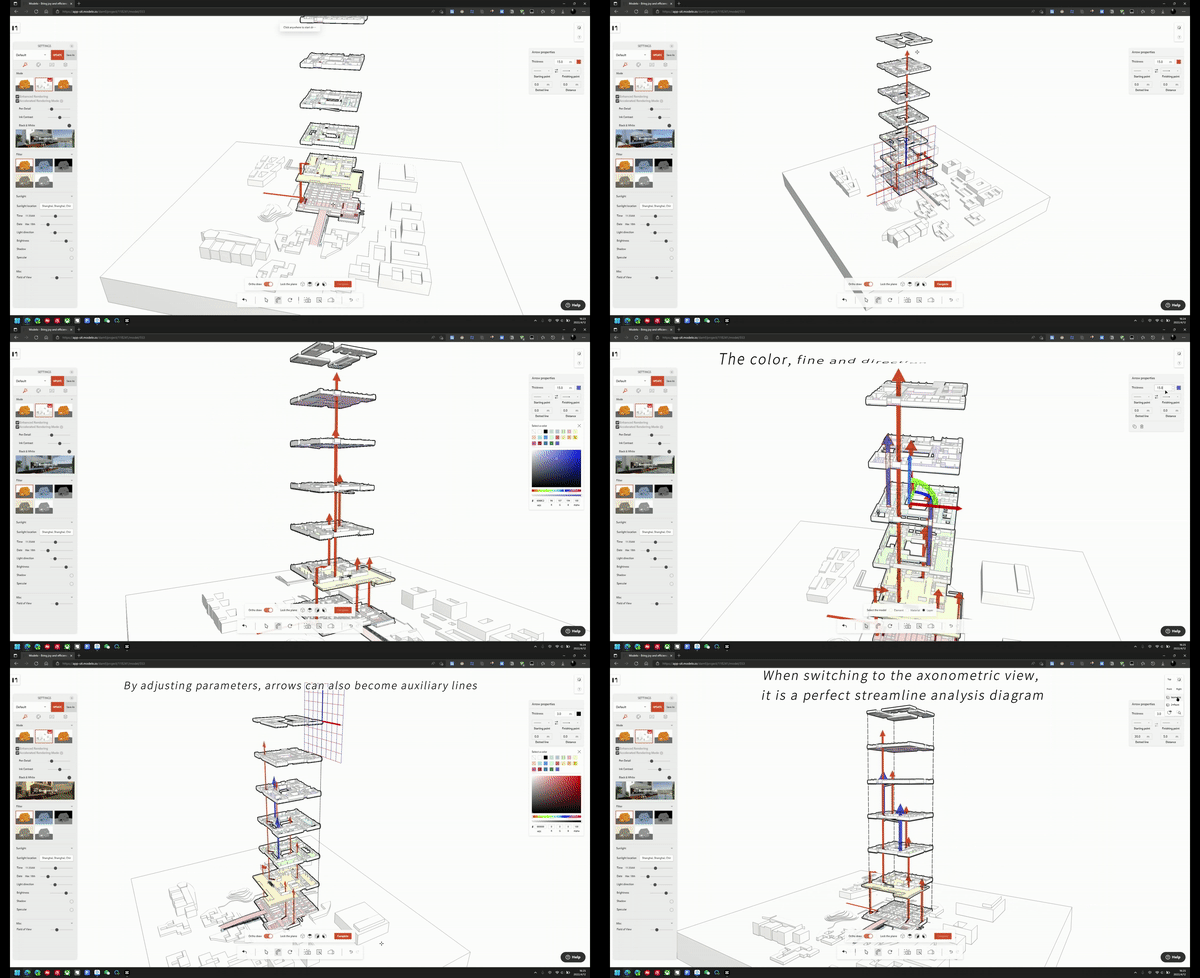
Next, the Modelo’s new feature – 3D arrow will help you finish the analysis diagram. You can switch plans to draw different 3D arrows and use operating axes to copy them.

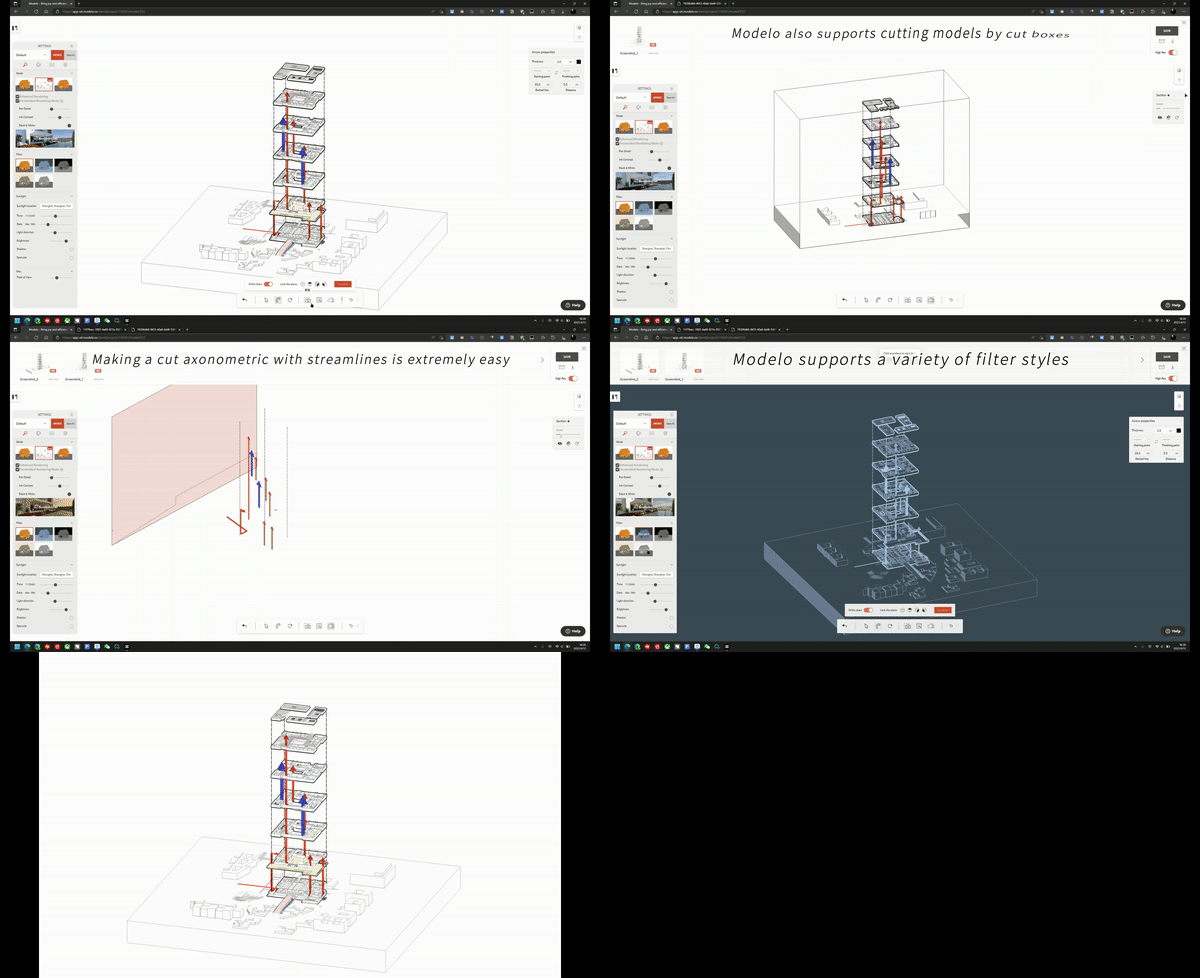
You can also change the arrows’ color or size to enrich your diagram. By adjusting parameters, arrows can become auxiliary lines.

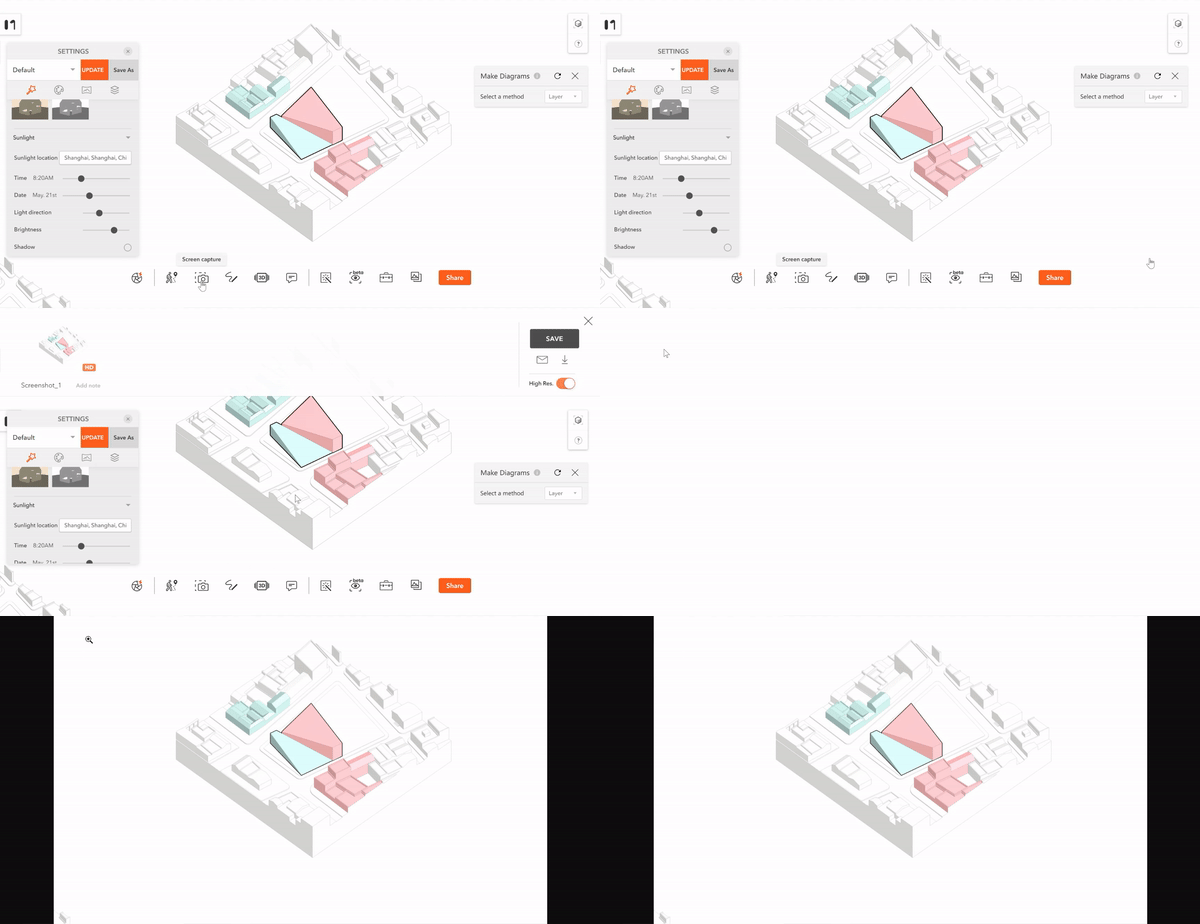
Finally, don’t forget to screenshot and get a high-resolution image. Modelo enables users to cut models and change styles quickly.

Isn’t that amazing? Upload your models and try them now!

Free online 3D model merger|Modelo

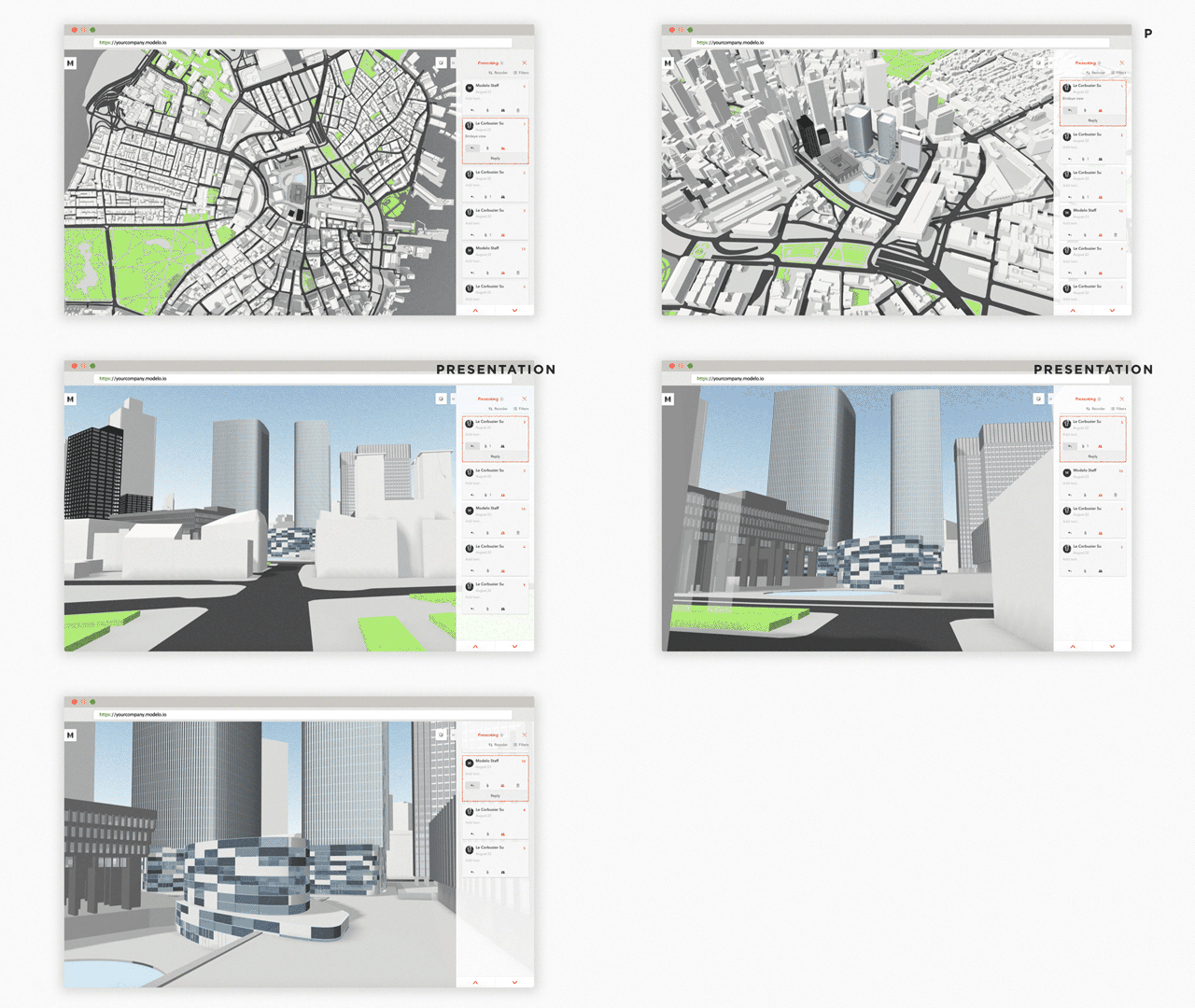
Modelo can merge models now! In the recent update, Modelo enables users to combine multiple models into one. Come and see how you can do that in just two easy steps.

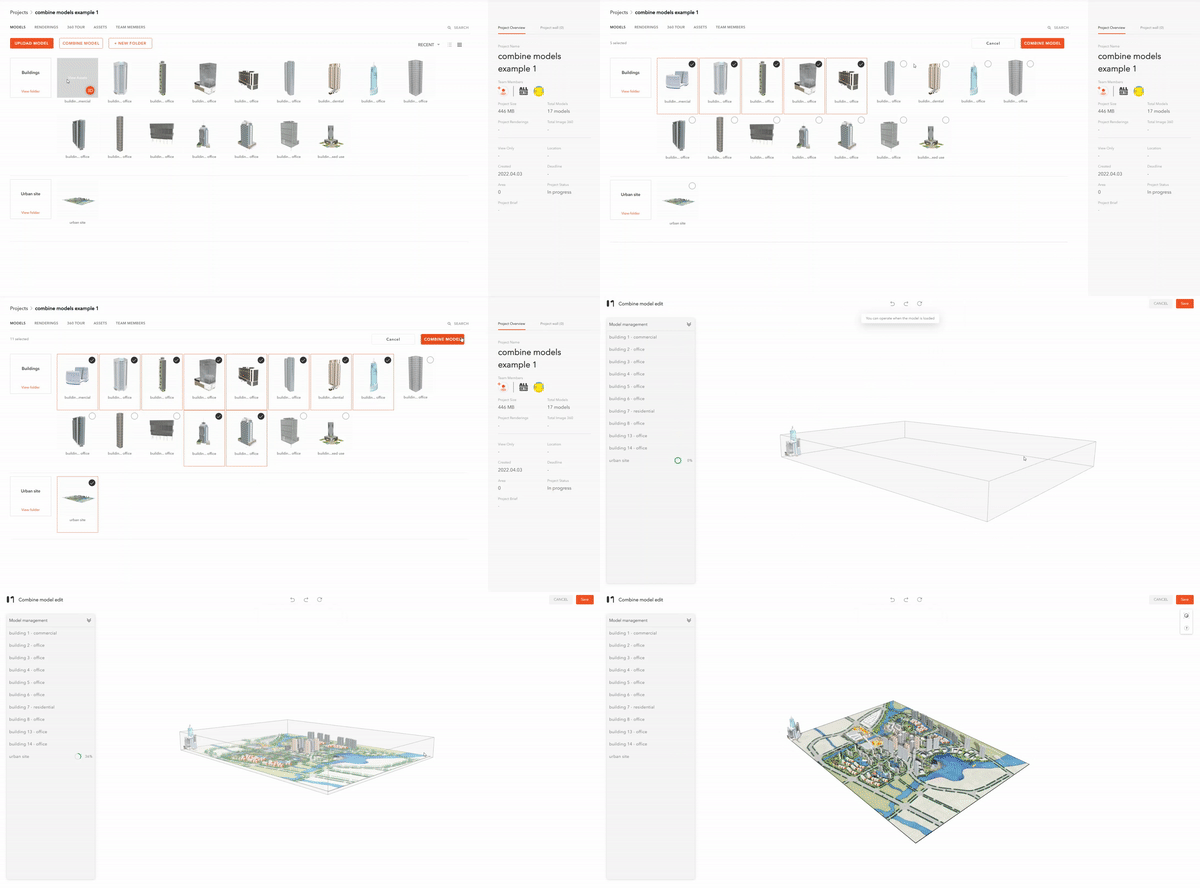
When you click the ”Combine Model“ option on the project page, you can select the models to be merged and open them on the same page. You can see the list of models on the left side of your window.

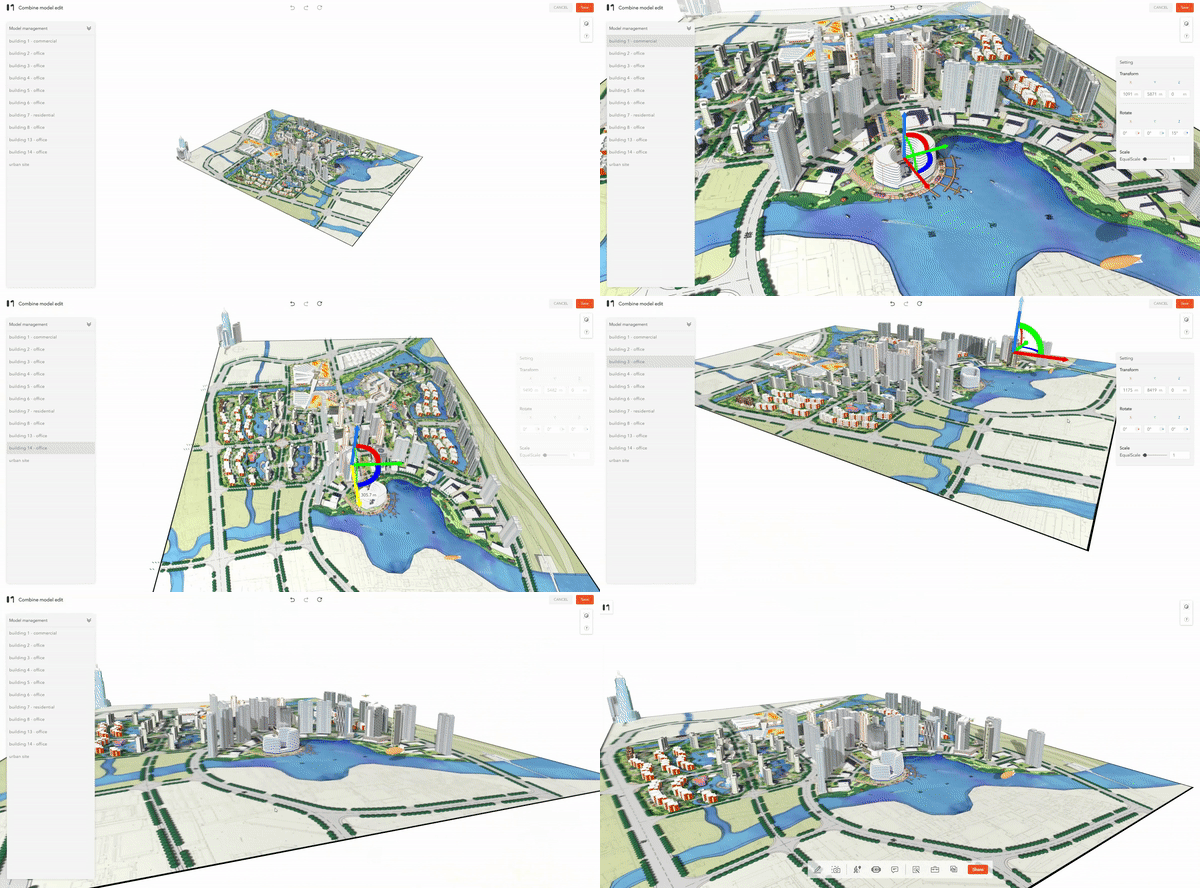
You can select the model through the list on the left and adjust their positions through the axes. Don’t forget to click the save button in the upper right corner after editing.

After the merge is completed, you can share the model with one click and complete online communication with others through the Model comment, which improves collaboration efficiency.

Modelo – Free Online 3D Max Model Viewer

Modelo is a website for viewing, publishing, and sharing 3D Max files. There are a lot of handy features that come with this tool. Modelo allows you to easily display 3D models on the web and view them on any browser, mobile, desktop, or tablet. You can upload an unlimited number of models from your software or your browser and embed them directly on Facebook, blogs, forums, or any other site.

Compared to other 3D Max model viewers, Modelo has the following outstanding advantages:

1. Modelo is a 3D viewer with Zero Learning Cost

With Modelo, you will be able to freely Rotate, Pan, Zoom in, Zoom out, and Spin a 3D model. In case you want to view different projections of a model, you can do so using this freeware. You can easily drag to upload your Revit to Modelo, or you can use our specific Modelo&Revit plugin to upload your files. Files that are hundreds of megabytes big can be dramatically compressed, so the download and rendering speeds get much faster. At the same time, Modelo separates the original model file from the visualization file, so there is no need to worry about your files getting stolen by sending them to visualize.

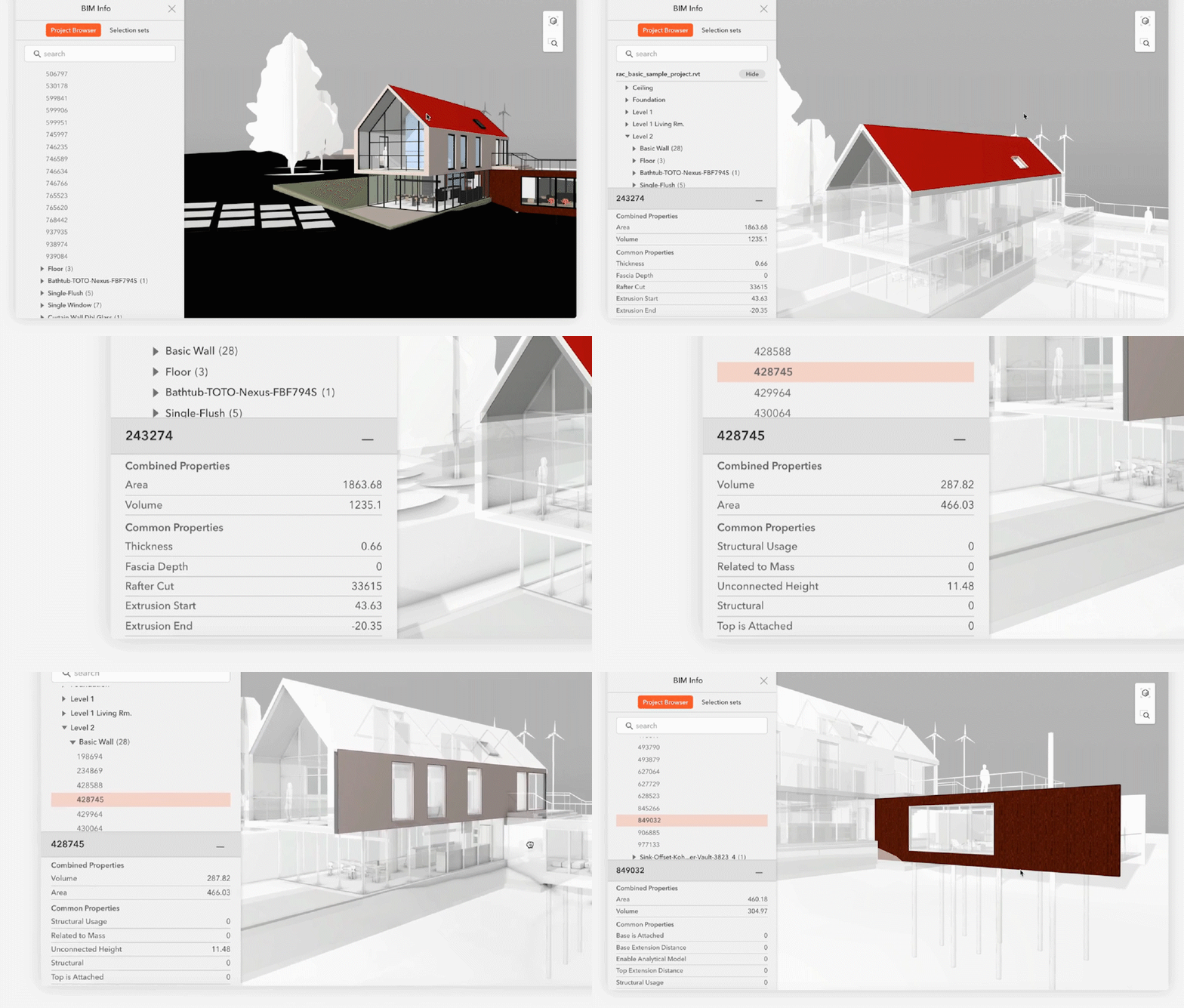
2. Fast BIM information viewing and management

Modelo is supported by a powerful BIM engine, making it have the ability to comprehend complex BIM pipeline lines and engineering infrastructure models while maintaining top-of-the-art real-time rendering effects. With BIM information management and data analysis on Modelo, you are empowered with a key to next-generation architecture. Even Dave Lemont, father of BIM referred to Modelo as “a gateway to BIM”.

3. Faster Rendering and Better Quality

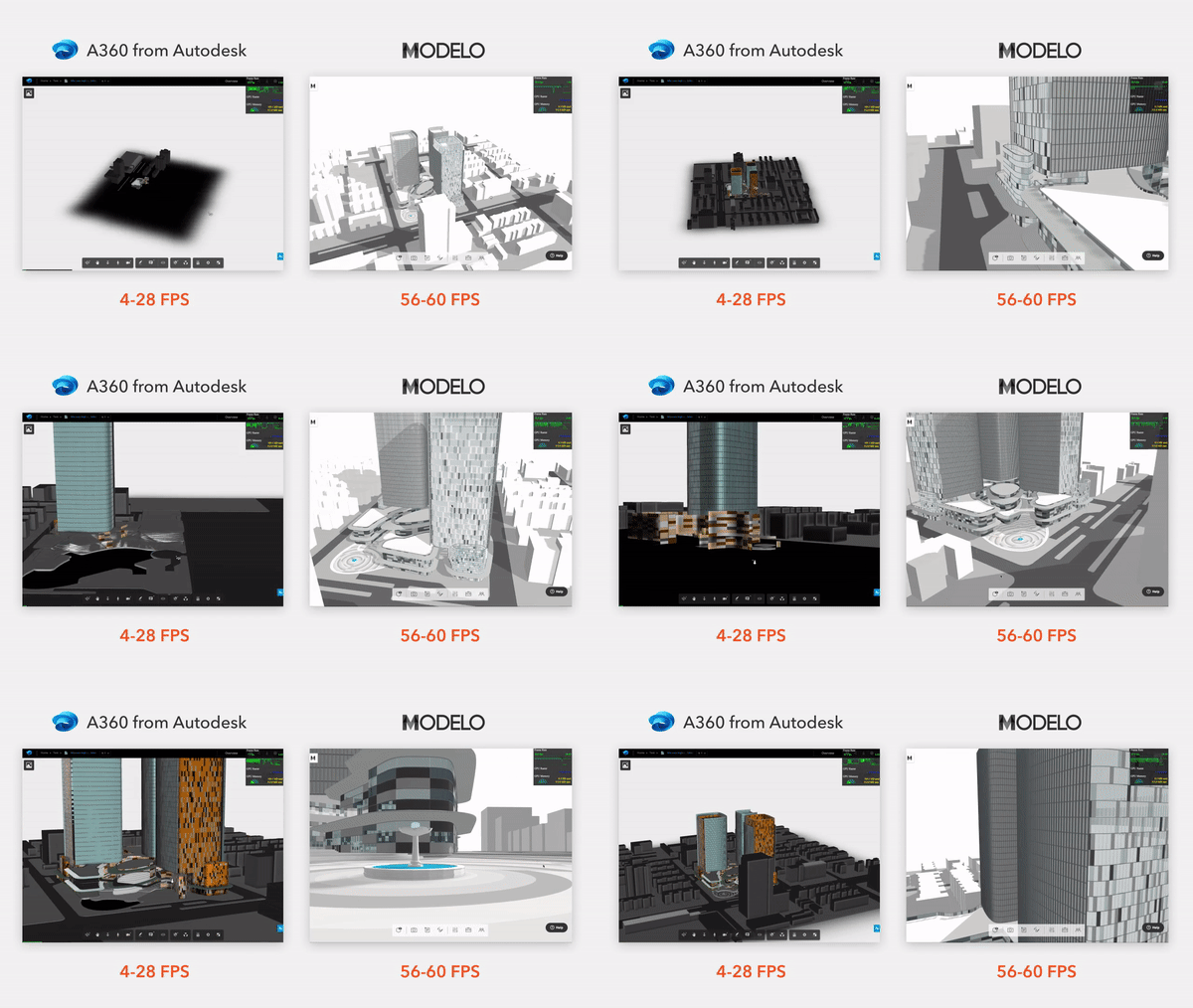
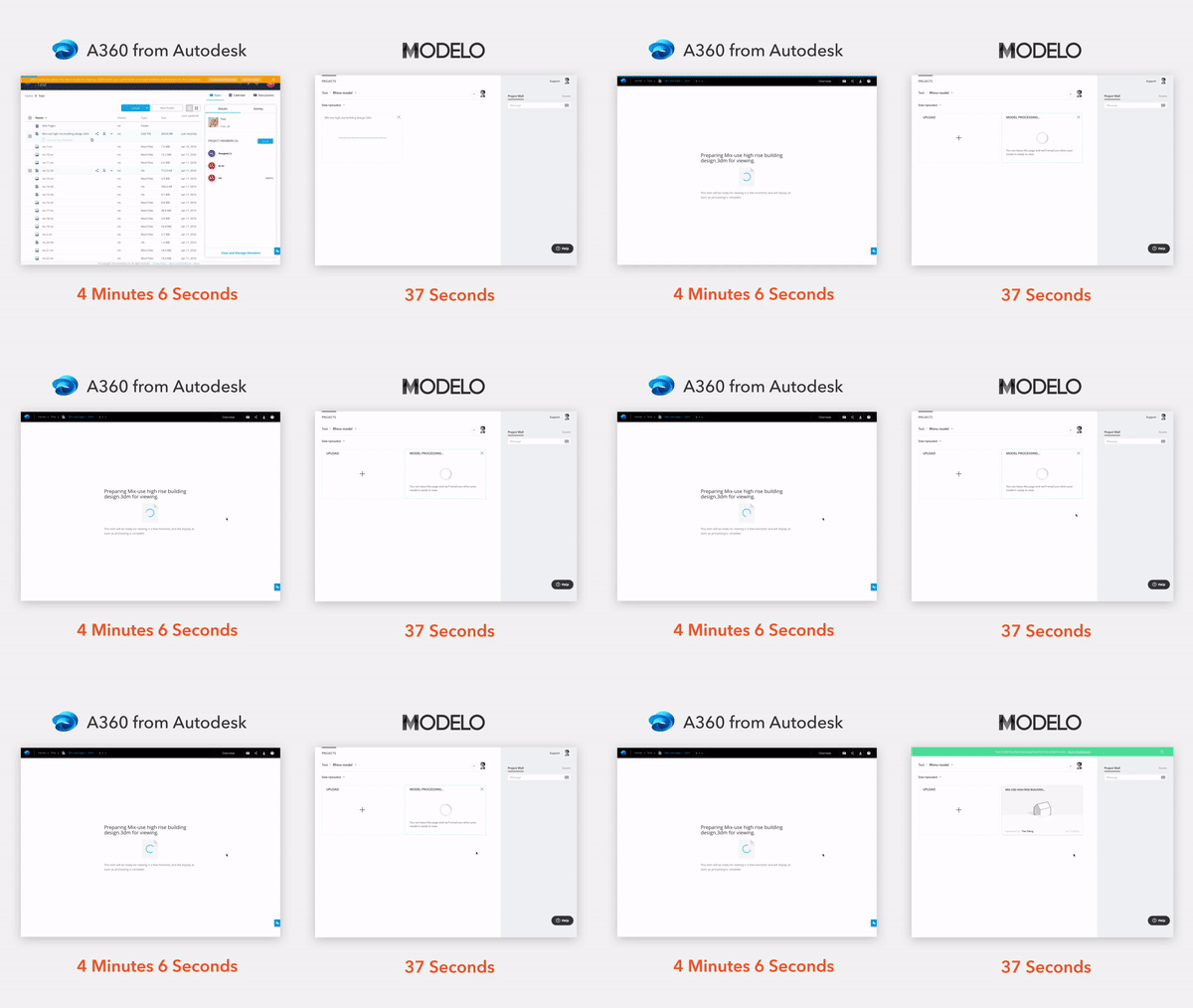
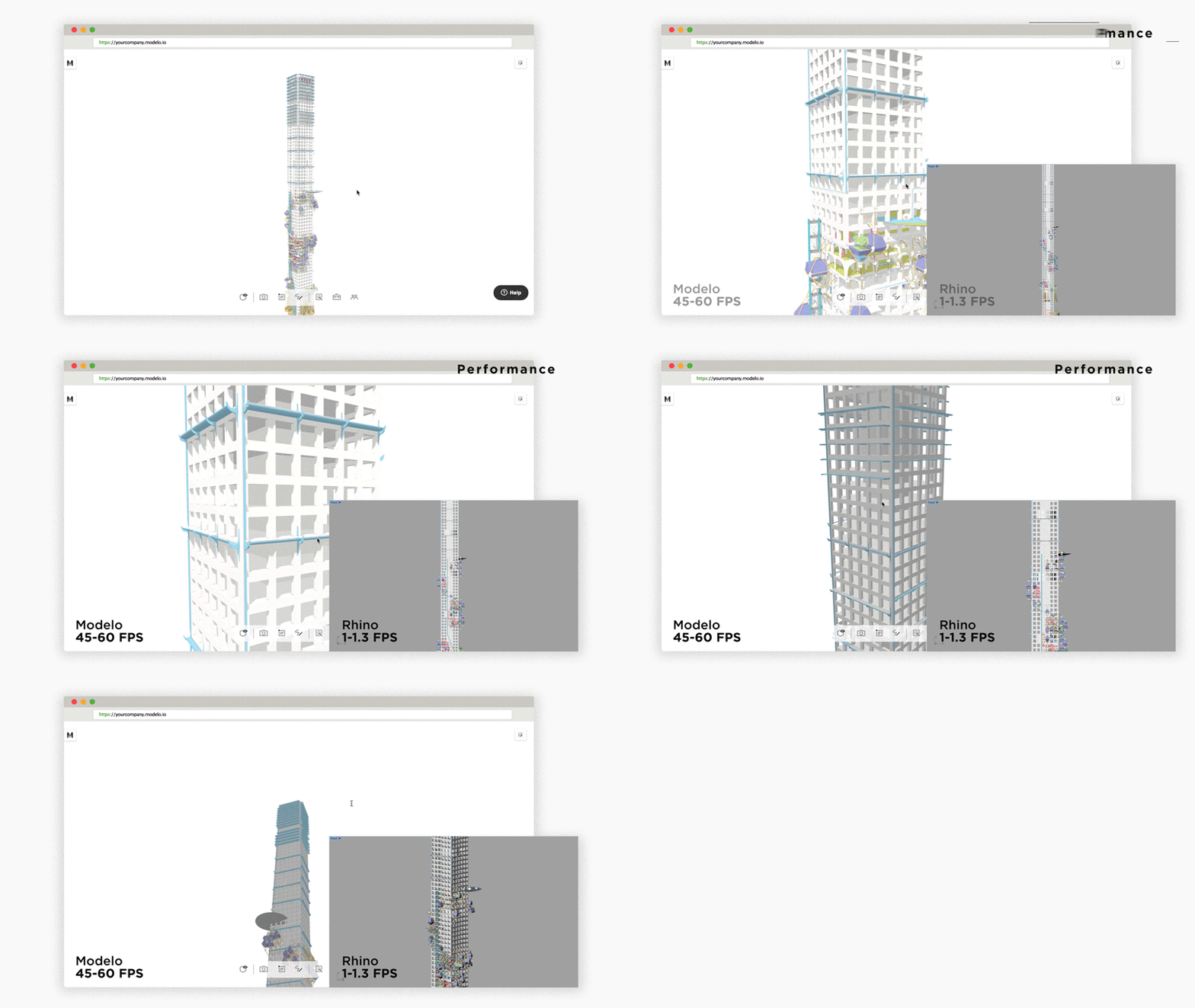
Modelo functions entirely within a standard internet browser like Google Chrome or Mozilla Firefox enabling users to upload their 3D data into a fast, intuitive viewer perfect for presenting to clients or sharing with colleagues for feedback. To achieve this, the expert graphics team of the company developed a custom compression and rendering engine to render models up to 45 times faster than the native design software they were created in. This speed allows architects to navigate through huge models fluidly while creating precise client presentations and discussing internal comments and markups in real-time.

4. Access your model on any device

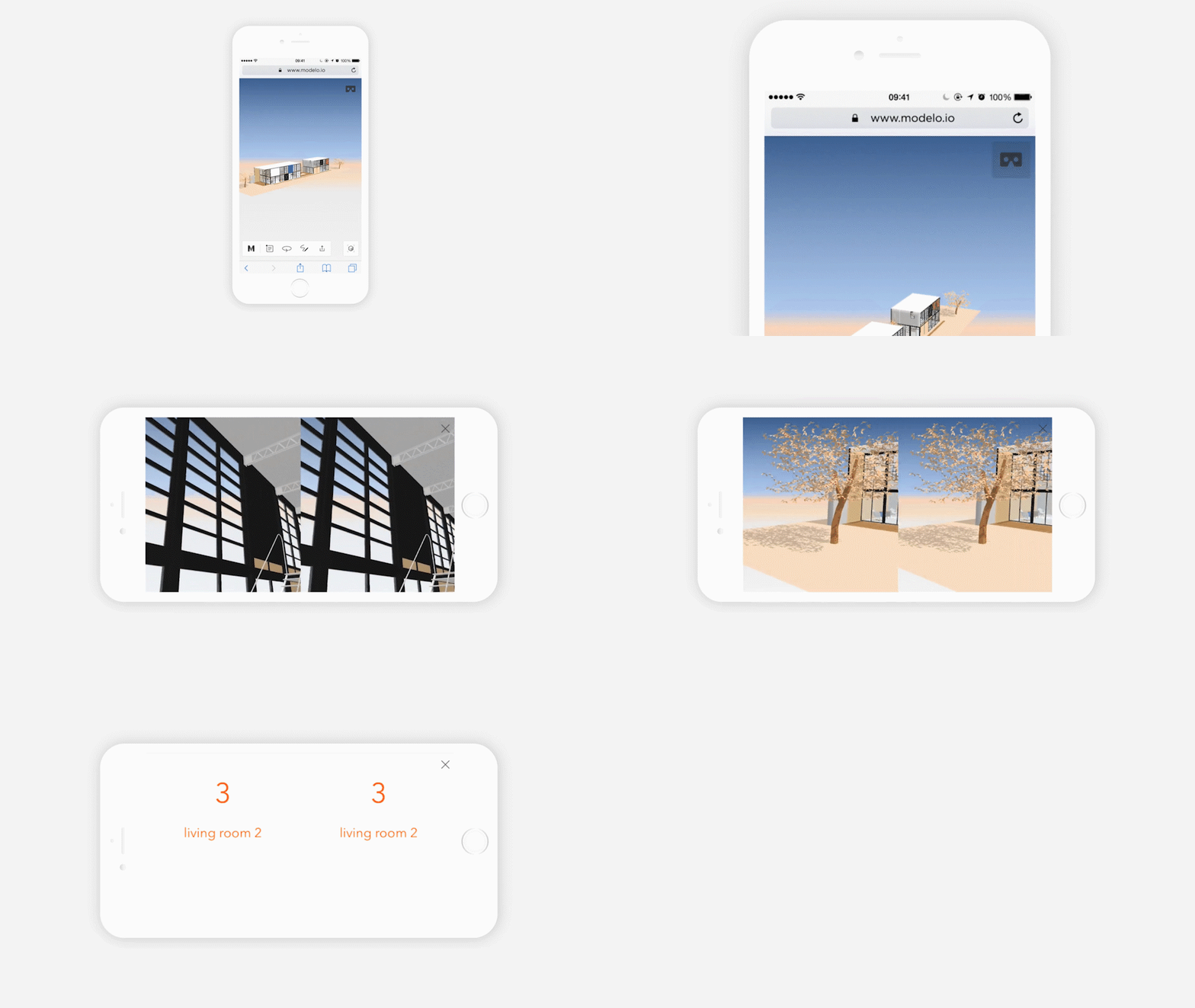
Where you want to view your model is never a problem for Modelo, as no software are required to install: no compatible issues. With a one-click sharing function, you can get a unique web address of your design with one click, and have the link send easily to anyone you want to share. The link is fully functional on computers, tablets, or mobile phones. With Modelo, we’ve added another dimension to the web browser where people can browse a Revit model directly on a company’s website or a designer’s portfolio site.


Modelo is a website for viewing, publishing, and sharing Revit files. There are a lot of handy features that come with this tool. Modelo allows you to easily display 3D models on the web and view them on any browser, mobile, desktop, or tablet. You can upload an unlimited number of models from your software or your browser and embed them directly on Facebook, blogs, forums, or any other site.

Compared to other Revit model viewers, Modelo has the following outstanding advantages:

1. Modelo is a 3D viewer with Zero Learning Cost

With Modelo, you will be able to freely Rotate, Pan, Zoom in, Zoom out, and Spin a 3D model. In case you want to view different projections of a model, you can do so using this freeware. You can easily drag to upload your Revit to Modelo, or you can use our specific Modelo&Revit plugin to upload your files. Files that are hundreds of megabytes big can be dramatically compressed, so the download and rendering speeds get much faster. At the same time, Modelo separates the original model file from the visualization file, so there is no need to worry about your files getting stolen by sending them to visualize.

2. Fast BIM information viewing and management

Modelo is supported by a powerful BIM engine, making it have the ability to comprehend complex BIM pipeline lines and engineering infrastructure models while maintaining top-of-the-art real-time rendering effects. With BIM information management and data analysis on Modelo, you are empowered with a key to next-generation architecture. Even Dave Lemont, father of BIM referred to Modelo as “a gateway to BIM”.

3. Faster Rendering and Better Quality

Modelo functions entirely within a standard internet browser like Google Chrome or Mozilla Firefox enabling users to upload their 3D data into a fast, intuitive viewer perfect for presenting to clients or sharing with colleagues for feedback. To achieve this, the expert graphics team of the company developed a custom compression and rendering engine to render models up to 45 times faster than the native design software they were created in. This speed allows architects to navigate through huge models fluidly while creating precise client presentations and discussing internal comments and markups in real-time.

4. Access your model on any device

Where you want to view your model is never a problem for Modelo, as no software are required to install: no compatible issues. With a one-click sharing function, you can get a unique web address of your design with one click, and have the link send easily to anyone you want to share. The link is fully functional on computers, tablets, or mobile phones. With Modelo, we’ve added another dimension to the web browser where people can browse a Revit model directly on a company’s website or a designer’s portfolio site.
Free Online Sketchup Model Viewer|Modelo

Sketchup is a popular 3D modeling software among designers. The Sketchup model enables conceptual designs to be created, viewed, and shared quickly and easily. However, it is hard to view Sketchup models online due to their complexity. So that’s why Modelo comes. Modelo is a free online Sketchup models viewer which can perfectly present models on all devices.

Modelo is a website for publishing, sharing, and discovering Sketchup models. It allows you to easily display 3D models on the web and view them on any browser, mobile, desktop, or tablet. You can upload an unlimited number of models from your software or your browser and embed them directly on Facebook, blogs, forums, or any other site.

Modelo has the following features that make it the best free online Sketchup viewer

  1. Modelo is a 3D viewer with Zero Learning Cost

With Modelo, you will be able to freely Rotate, Pan, Zoom in, Zoom out, and Spin a 3D model. In case you want to view different projections of a model, you can do so using this freeware. Every Rhino user can drag and drop their 3D files into the browser. All the files are stored in their own designated folders, so there is no need to use another online cloud storage or file transfer service, like Dropbox or Wetransfer. Files that are hundreds of megabytes big can be dramatically compressed, so the download and rendering speeds get much faster. At the same time, Modelo separates the original model file from the visualization file, so there is no need to worry about your files getting stolen by sending them to visualize.

2. Faster Rendering and Better Quality

Modelo functions entirely within a standard internet browser like Google Chrome or Mozilla Firefox enabling users to upload their 3D data into a fast, intuitive viewer perfect for presenting to clients or sharing with colleagues for feedback. To achieve this, the expert graphics team of the company developed a custom compression and rendering engine to render models up to 45 times faster than the native design software they were created in. This speed allows architects to navigate through huge models fluidly while creating precise client presentations and discussing internal comments and markups in real-time.

3. Access your model on any device

Where you want to view your model is never a problem for Modelo, as no software are required to install: no compatible issues. With a one-click sharing function, you can get a unique web address of your design with one click, and have the link sent easily to anyone you want to share. The link is fully functional on computers, tablets or mobile phones. With Modelo, we’ve added another dimension to the web browser where people can browse a Rhino model directly on a company’s website or a designer’s portfolio site.
4. Make your presentation alive

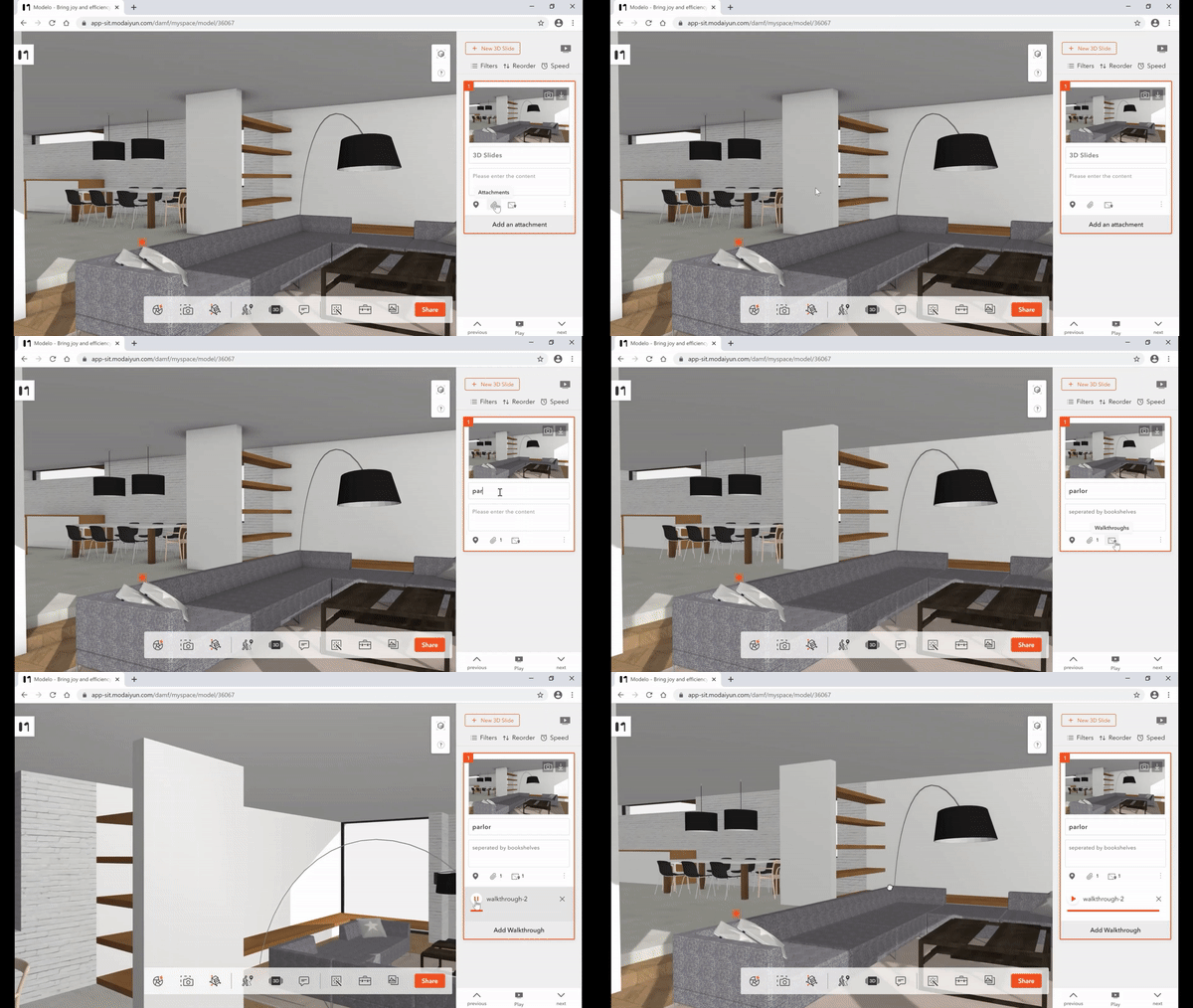
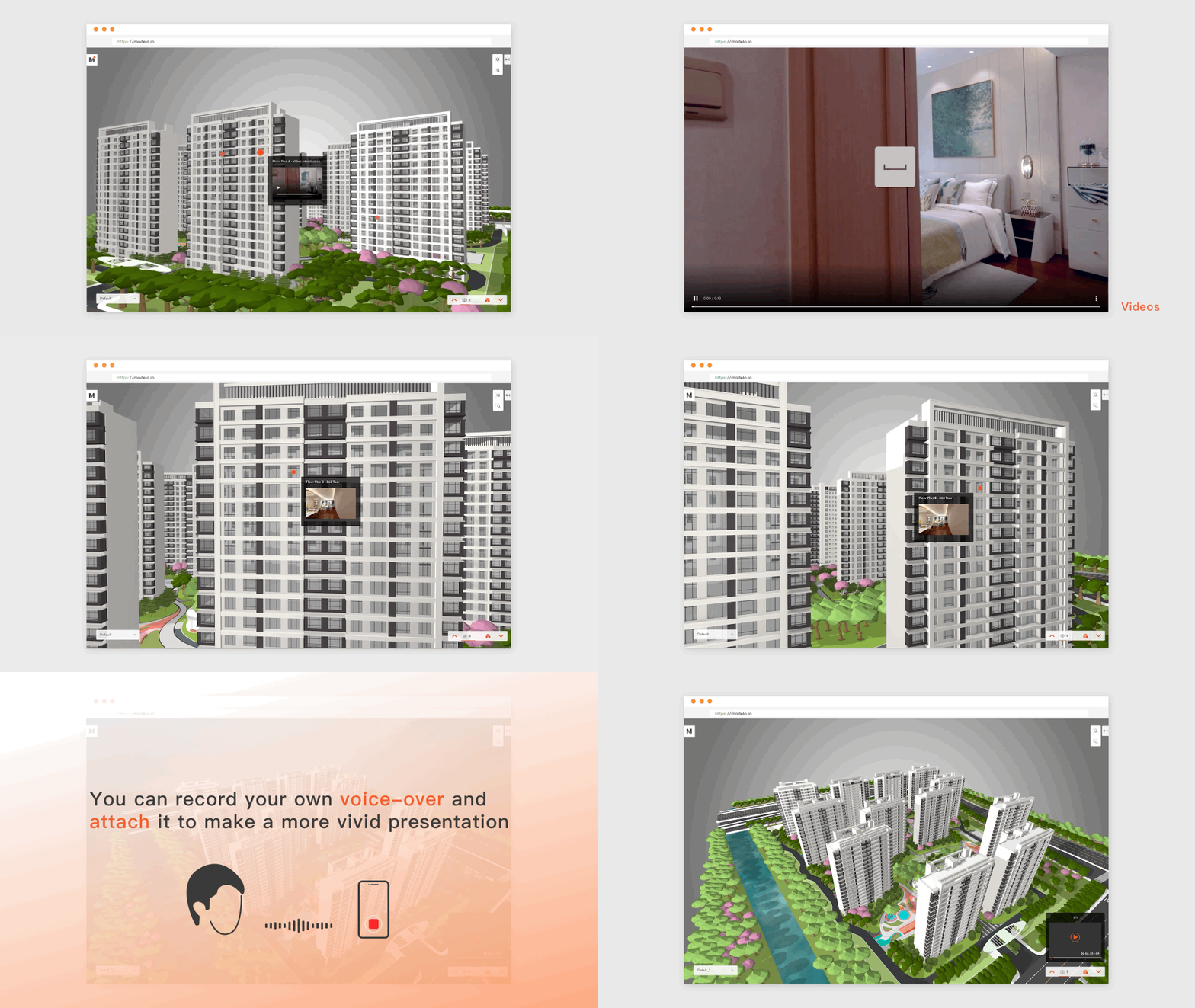
Designers can simply pre-save camera angles of their design, attach images and videos to each angle with Modelo. By just pressing the left-right arrow, it will navigate through the 3D space. Designers can also control what they want others to see and how they want them to see it. Also with these pre-saves, project members now can mark up on design updates anytime and turn them into a specific task for a designated person. Any comments about design or manufacturing can be made at the place where they are meant to be – in 3D.

Craft Rhino Architectural Diagrams in Minutes with Modelo

Architectural diagrams help to clarify a building, relationships between elements of a building, or a process connected to a building. Architects do this with visual symbols which can be considered all at once, unlike language which must be processed in a linear fashion. The problem is that it takes lots of time to produce a simple architectural diagram in Rhino. However, the Modelo new Make Diagram function helps you craft Rhino architectural diagrams in minutes. Let’s see how we achieve that.

The first thing you need to do is upload your Rhino Models to Modelo. Modelo is an online 3D model platform. You only need to drag to upload your Rhino files to Modelo and it will finish uploading quickly.

You can find the Modelo’s Make Diagrams function in the tool. There are three select modes: by the element, material, and layer.

You could tint volume with reference colors to show the different properties of the architecture. In this model, we use blue and pink to show the trend of architecture and related buildings around the site.
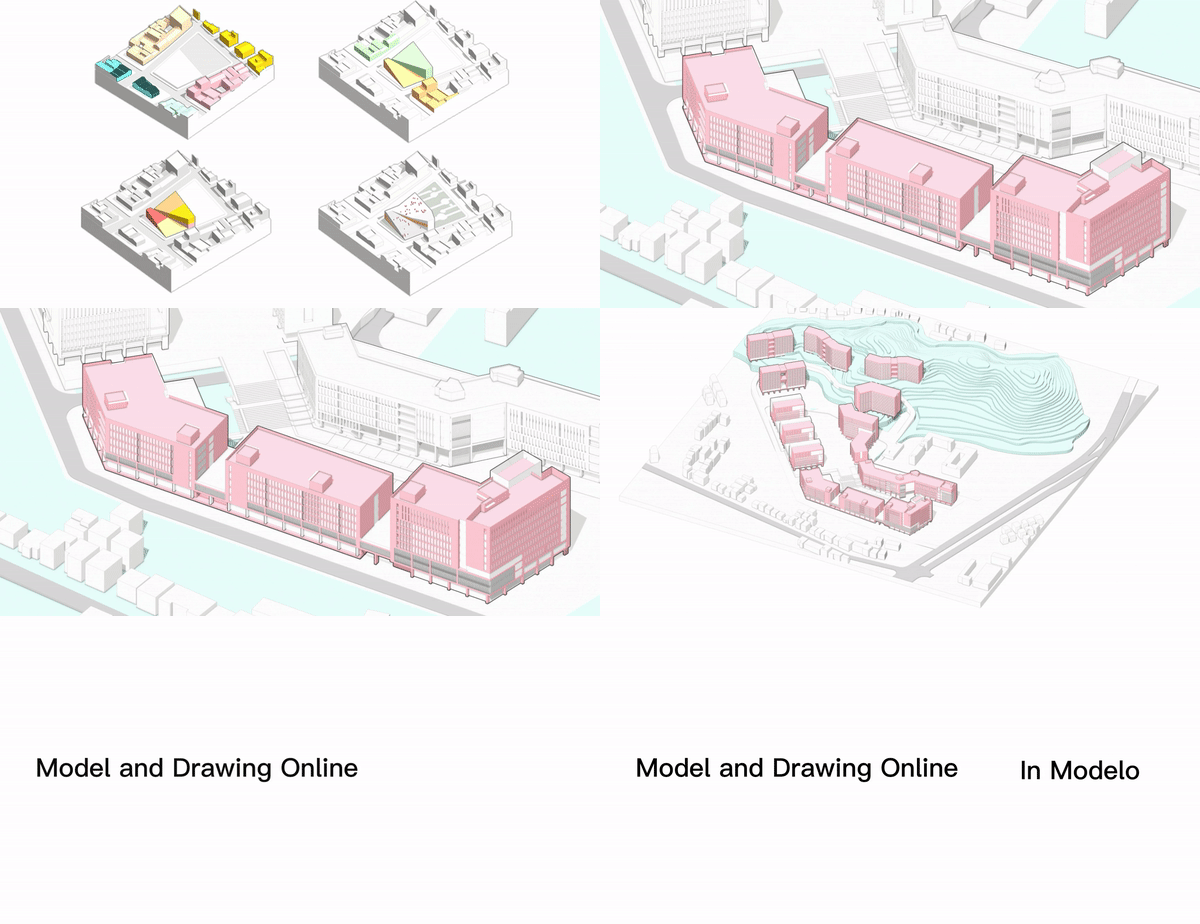
After finishing the selection and coloration, don’t forget to screenshot and capture the diagram. It only takes you 3 minutes to create a simple architectural diagram.

If you want to select multiple parts of the model, press CTRL and select them at the same time. Then you can tint or stroke them all together with one click.

Isn’t that easy? Come to Modelo and create your architectural diagrams now.

Convert STL to GLTF Free | Modelo

STL

STL (STereoLithography) is a file format native to stereolithography CAD software. This file format is supported by many other software packages; it is widely used for rapid prototyping, 3D printing, and computer-aided manufacturing. STL files describe only the surface geometry of a three-dimensional object without any representation of color, texture, or other common CAD model attributes. The STL format specifies both ASCII and binary representations. Binary files are more common since they are more compact.

glTF

glTF (derivative short form of GL Transmission Format) is a file format for 3D scenes and models using the JSON standard. It was initially intended to be an efficient, interoperable format with minimum file size and runtime processing by apps.

The standard for many 3D applications and game engines, it is especially prominent as a common publishing format for 3D content tools and as the format of choice for web apps.

Convert STL files to glTF in Modelo

Modelo is a free online platform that enables users to view, modify, transform and publish 3D models. It only takes 2 steps to convert STL models to glTF files.

Upload STL file to Modelo

No matter your model is in any format such as FBX, obj, 3dm, SKP, etc., you can directly upload the model by dragging it to Modelo.

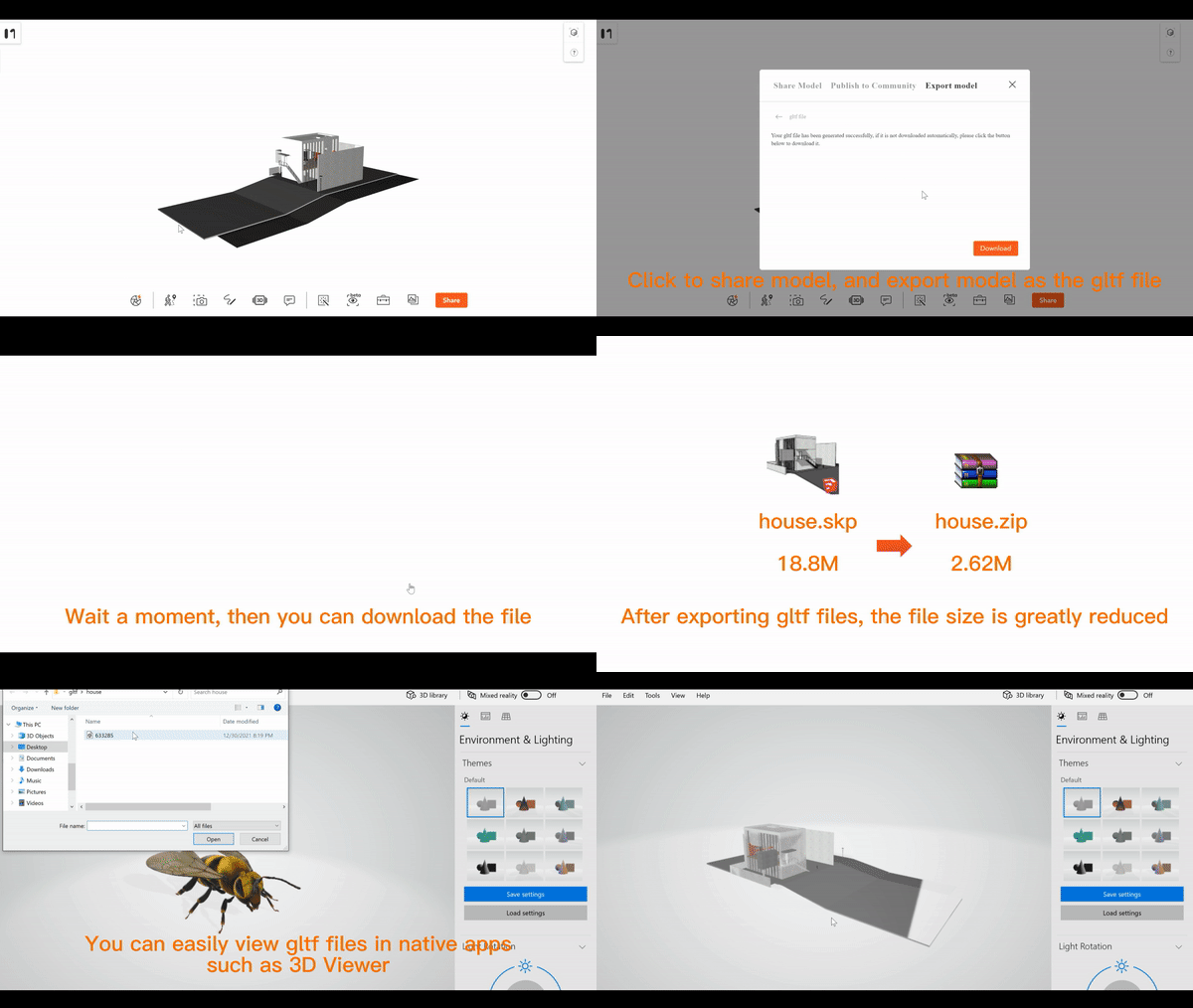
Export to GLTF

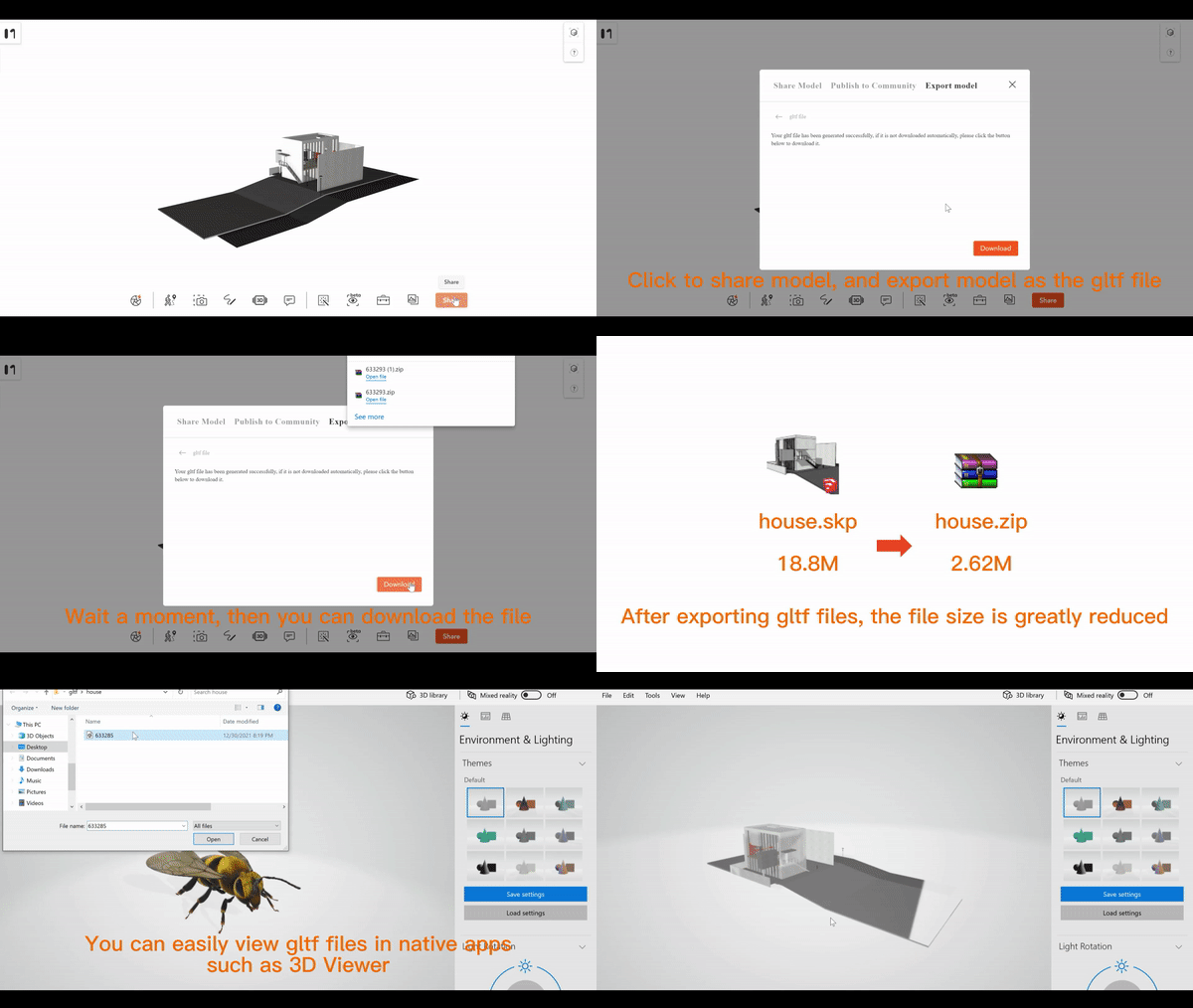
Via Modelo’s export and share function, the model can be transformed to GLTF format in minutes. Then you can download this model to your local.